WordPress 7.1.2 Security Update: What Site Owners Should Do Now
Updated September 29, 2026. WordPress released version 7.1.2 on September 22 as a security update for a critical vulnerability and recommends installing it immediately. Under specific server-environment and active-theme conditions, the issue could allow an unauthenticated attacker to make template resolution include a readable local PHP file outside the active theme directories, potentially leading to remote code execution. This is a conditional risk; the advisory does not say every site is exploitable. Read the official WordPress 7.1.2 advisory.

What changed in WordPress 7.1.2?
The official release note identifies one security fix, credits Robert Ressl for responsible disclosure, and references CVE-2026-87902 / GHSA-7hp8-65ch-5whp. The described condition involves template resolution including a chosen readable local PHP file outside active theme directories. If the relevant server and active-theme prerequisites are present, this could lead to remote code execution. The release notice is not evidence that a particular site has been compromised. WordPress 7.1.2 release documentation.
The fix was backported across affected supported branches, including WordPress 7.0 through 4.7. The fixed releases listed by WordPress include 7.0.6, 6.9.9, 6.8.10, 6.7.9, and corresponding fixed versions for older supported branches through 4.7. WordPress 4.6 and earlier no longer receive security updates. If your site is on an older branch, use the official version 7.1.2 documentation and release archive to identify the fixed release for that branch, then plan an upgrade to a currently supported version.
Separately, the Canadian Centre for Cyber Security reported on September 25 that open-source reporting indicated exploitation in the wild and that CISA had added CVE-2026-87902 to its Known Exploited Vulnerabilities catalog. This is a reason to prioritize patch verification, but it does not establish that any particular site was compromised. Read the Canadian Centre advisory.

How to check your WordPress version
- Sign in to your WordPress administrator dashboard.
- Open Dashboard → Updates and review the core version and available update.
- Check the version shown in the dashboard’s “At a Glance” area or site information.
- Compare it with the official release archive.
WordPress documentation confirms that core, plugin, theme, and translation updates are managed from Dashboard → Updates. If your host manages updates, verify the installed version in WordPress rather than relying only on a hosting notification. See the Dashboard Updates documentation.

Update safely: a practical checklist
1. Make a restorable backup
Back up both the database and website files. Confirm that you know how to restore them; an untested backup may not help during an outage. WordPress’s updating guide covers backup preparation and update methods.
2. Prepare the maintenance window
- For a high-traffic or revenue-generating site, use a staging copy when available.
- Confirm backup completion and retain administrator and hosting access.
- Choose a lower-traffic period when practical, without unnecessarily delaying a critical security fix.
- Avoid bundling unrelated design or plugin changes into the same maintenance window.

3. Install the appropriate core update
Open Dashboard → Updates, review the offered WordPress core version, and use the update control. On an older supported branch, follow the release archive for its fixed version. If automatic updates are enabled, still verify the installed version and site operation.
4. Test the live site
Open the homepage and important pages in a private browser window. Test forms, login, search, checkout or booking flows, and business-critical integrations that apply. Review browser and hosting error logs if something behaves unexpectedly. Clear caches if needed to ensure the current version is being served.

5. If the update fails
Capture the error, check hosting status and logs, and use your tested restore procedure if necessary. Avoid repeatedly rerunning the update without diagnosing the failure. Contact your host or a qualified WordPress developer if the site is unavailable or you cannot confidently restore it.
What this means for small businesses and agencies
Assign someone to own updates, maintain recoverable backups, apply security releases promptly, and confirm customer-facing workflows afterward. Agencies managing multiple sites can keep a simple register containing site name, installed core version, update date, backup status, responsible person, and post-update test result. A version number alone does not prove that an entire website is secure.
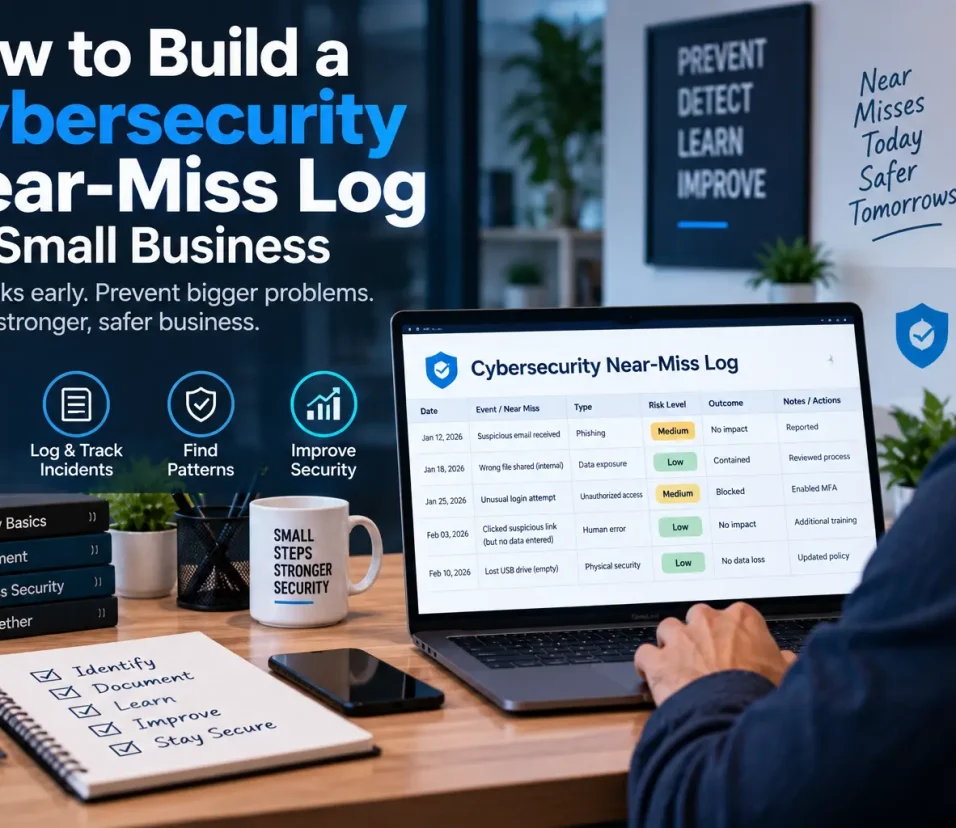
Related Zynprint guides: build a cybersecurity near-miss log for a small business to document unusual events, and WordPress website design and usability tips for routine site quality checks.
Frequently asked questions
Is WordPress 7.1.2 a security update?
Yes. WordPress identifies it as a security release containing a fix for a critical-severity vulnerability.
Does every WordPress site face the same risk?
No. The advisory describes conditions involving the server environment and active theme. It does not establish that every site meets those conditions. Updating remains the recommended action.
What if my site is not on WordPress 7.1?
Use the fixed security release for your branch. WordPress lists fixes for affected branches from 7.0 through 4.7; WordPress 4.6 and earlier no longer receive security updates, so plan an upgrade to a supported version. Check the official version documentation and release archive rather than installing 7.1.2 over a different branch without reviewing the upgrade path.
Should I update plugins and themes too?
Review their available updates as part of maintenance, but keep changes controlled. Back up first and test after meaningful changes. WordPress has separate guidance for plugin and theme auto-updates.
Where can I learn the WordPress dashboard basics?
The official WordPress channel’s Getting started with the WordPress Dashboard video introduces the admin area. For the core update process, follow the written WordPress updating guide.
Bottom line
WordPress 7.1.2 is a security release, and the project recommends prompt installation. Check each site’s version, back up files and database, install the fixed release appropriate to its branch, and verify important visitor workflows afterward. Use the official advisory and release archive as the source of truth.
Editorial note: This is educational guidance, not a forensic assessment of an individual installation. No site-wide security status or AdSense approval is implied.