WordPress Website Design Tips: 15 Practical Tips for a Fast, User-Friendly Site
- by Muhammad Raza
- 0 Comments
- 16 minutes read
- 56 Views
These WordPress website design tips can help you create a modern site that is easy to understand and use.
A website might have beautiful colors but confusing navigation. It might contain excellent articles but load slowly. It might look impressive on a desktop computer but become difficult to use on a smartphone.
That is why WordPress website design is about much more than choosing a theme and adding attractive images.
Good website design combines visual appearance, usability, performance, accessibility, content structure, mobile responsiveness, SEO, security, and clear communication.
WordPress gives website owners considerable flexibility in how pages and posts are structured. Its Block Editor uses individual content blocks for elements such as headings, paragraphs, images, videos, galleries, lists, and design components.
That flexibility can be extremely useful, but it also means that website owners need a clear design strategy.
A professional website should answer three questions quickly:
What is this website about?
What can I do here?
Where should I go next?
If visitors can answer those questions without thinking too much, your design is already moving in the right direction.
In this guide, we will explore 15 practical WordPress website design principles that can help you create a website that looks professional, performs well, and gives visitors a better experience.
What Is WordPress Website Design?
WordPress website design is the process of planning and creating the visual structure, layout, navigation, content presentation, and user experience of a website built with WordPress.
It includes elements such as:
- Website layout
- Colors
- Typography
- Navigation
- Buttons
- Images
- Content structure
- Page hierarchy
- Mobile responsiveness
- Calls to action
- Forms
- Performance
- Accessibility
- SEO
A good design does not simply make a website attractive.
It makes the website easier to understand and use.
For example, an online business website might need visitors to:
- Understand the service.
- See why the business is useful.
- Review examples or benefits.
- Contact the business.
The design should guide visitors through that process naturally.
Why WordPress Website Design Matters
Visitors make judgments about websites very quickly.
If a page looks outdated, cluttered, difficult to navigate, or poorly optimized for mobile devices, visitors may leave before discovering your content.
A good design can help:
- Improve navigation
- Make content easier to read
- Increase trust
- Highlight important information
- Encourage visitors to explore more pages
- Make calls to action clearer
- Improve mobile usability
- Support SEO
- Reduce unnecessary distractions
Design also affects your publishing workflow.
A well-structured WordPress website makes it easier to add new articles, categories, images, landing pages, and other content without constantly redesigning the site.
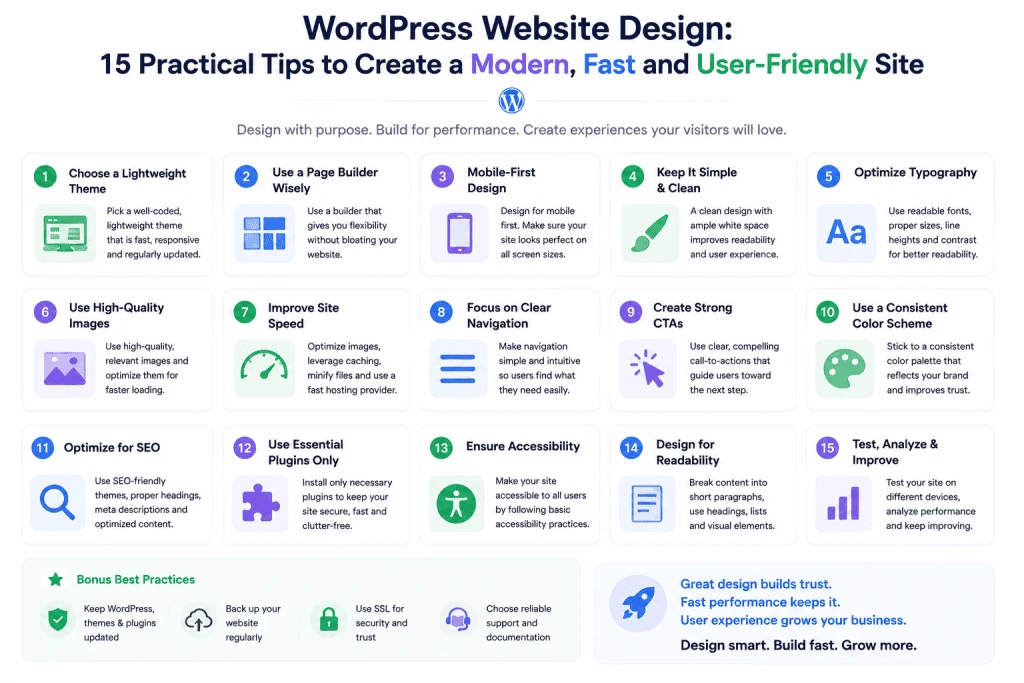
15 WordPress Website Design Tips
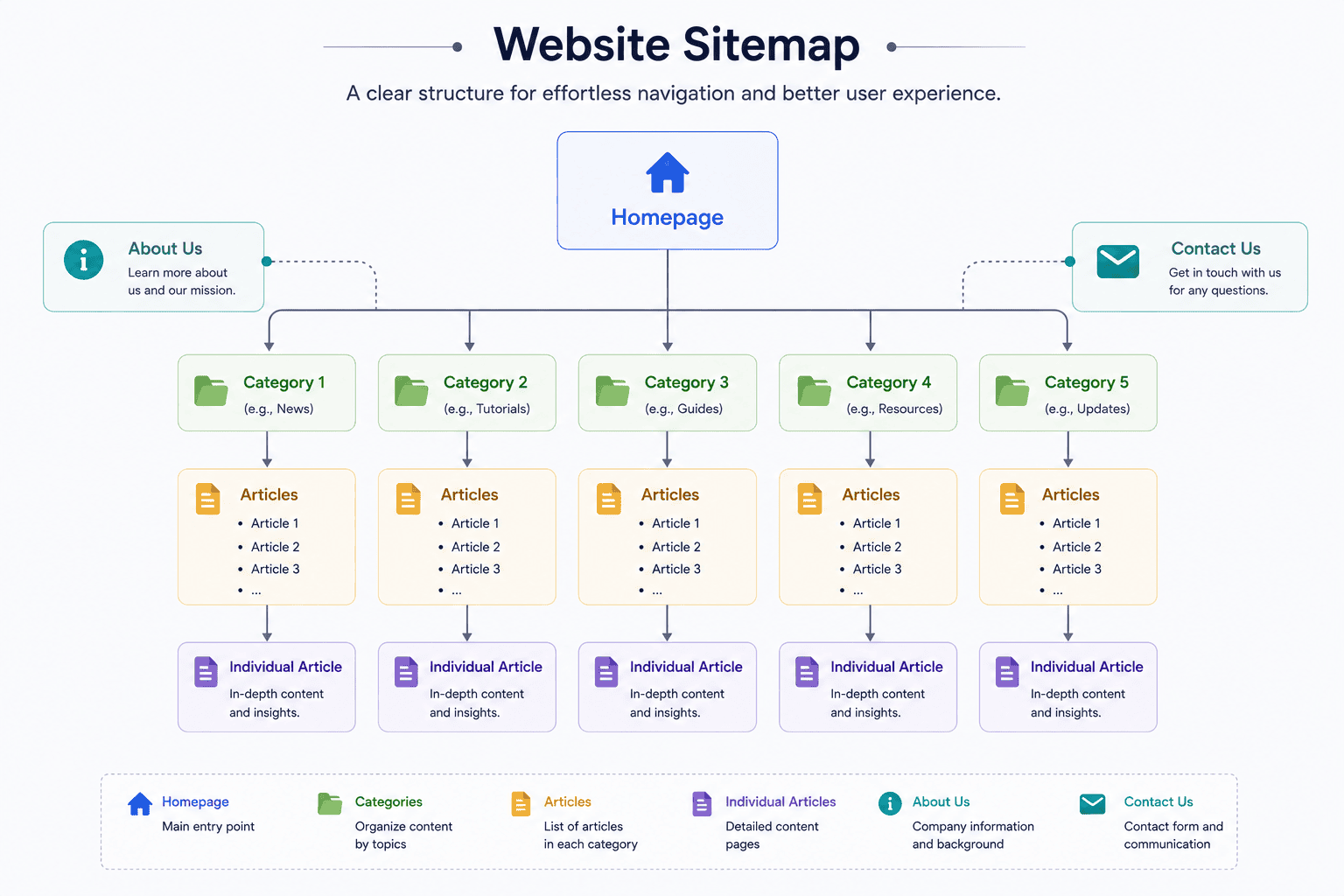
2. Keep Your Navigation Simple
Navigation is one of the most important parts of website design.
A visitor should not have to search through a complicated menu to find important information.
Your main navigation might contain:
Home | AI | WordPress | Web Design | Freelancing | About | Contact
The exact labels will depend on your website.
Use familiar language.
For example, “Contact” is usually clearer than a creative label such as “Let’s Talk.”
A navigation menu should help users predict what they will find after clicking.
The WordPress Block Editor and modern WordPress themes provide tools for creating and organizing site content and layouts, allowing website owners to build structured pages without necessarily writing code for every element.
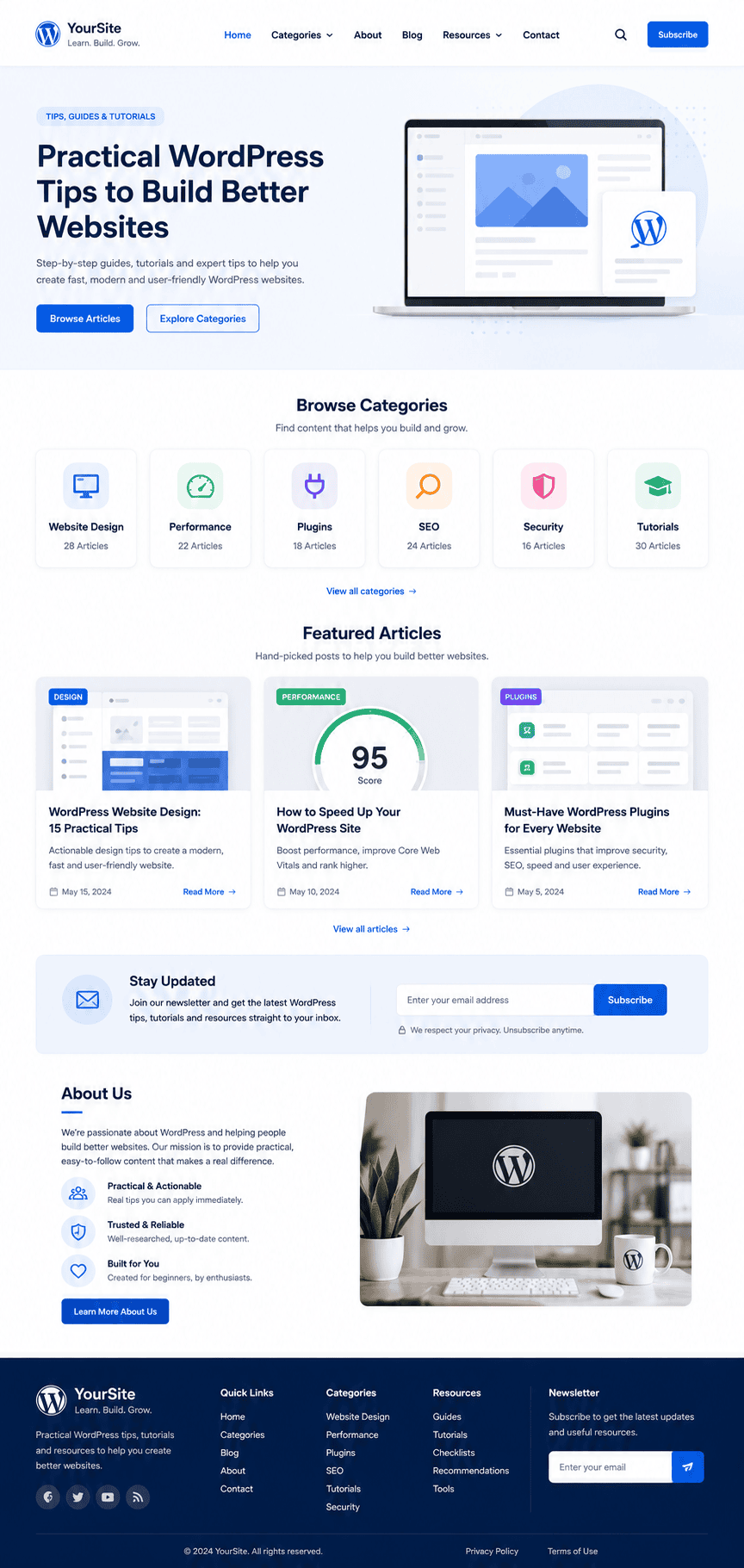
3. Design a Strong Homepage
Your homepage is often the first major page visitors see.
It should quickly communicate:
- Who you are
- What your website covers
- What visitors can find
- Why they should continue reading
A content website might use a structure such as:
Hero Section
A clear headline explaining the website.
Introduction
A short explanation of what visitors can expect.
Featured Categories
Show your main topics.
Featured Articles
Highlight useful or recent content.
About Section
Explain the purpose of the website.
Newsletter or CTA
Give visitors an optional next step.
Footer
Include important links and site information.
Do not attempt to put everything on the homepage.
The homepage should guide visitors rather than overwhelm them
4. Use Consistent Typography
Typography has a major impact on readability.
Your website may contain:
- Main headings
- Subheadings
- Body text
- Captions
- Buttons
- Navigation labels
- Metadata
Each should have a clear visual hierarchy.
For example:
H1: Largest and most prominent
H2: Major section
H3: Subsection
Body: Comfortable reading size
Avoid using too many fonts.
A simple combination of one heading font and one body font can look more professional than using several unrelated typefaces.
Also pay attention to line spacing.
Paragraphs that are packed tightly together can be difficult to read, especially on mobile screens.
5. Use White Space Properly
White space is not wasted space.
It helps separate sections and allows visitors to focus on important information.
Without enough spacing, a page can look like one giant block of content.
Good spacing can make:
- Headings easier to notice
- Paragraphs easier to read
- Buttons easier to identify
- Images more prominent
- Sections easier to understand
You do not need huge gaps everywhere.
The goal is consistency.
Use spacing to create visual rhythm.
6. Make Your Website Mobile-Friendly
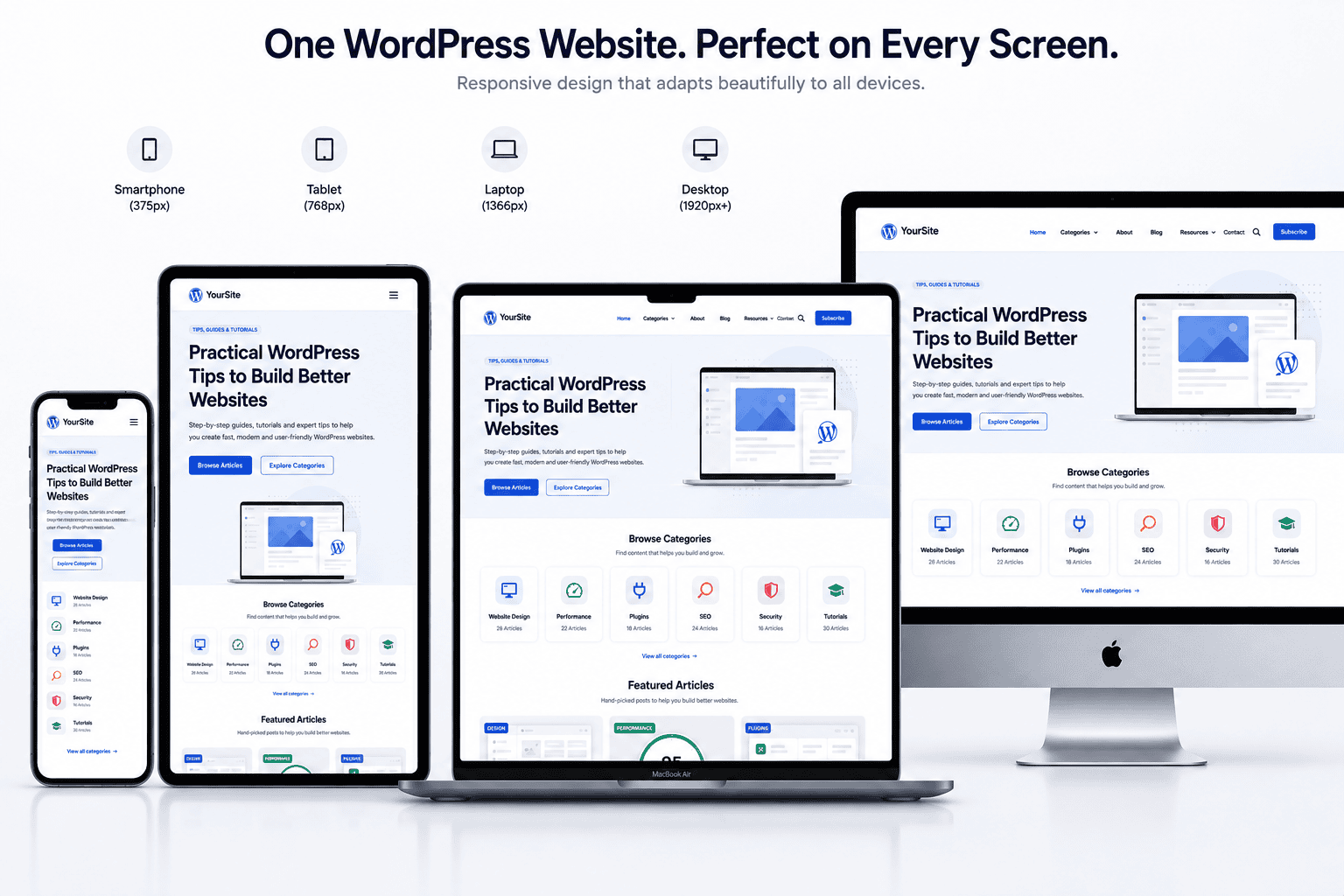
A large portion of modern web browsing happens on mobile devices.
Your website should therefore be easy to use on:
- Smartphones
- Tablets
- Laptops
- Desktop computers
Test important elements on smaller screens.
Check:
- Navigation
- Font size
- Buttons
- Images
- Tables
- Forms
- Videos
- Columns
- Article spacing
A desktop layout that looks excellent can become difficult to use when squeezed into a narrow mobile screen.
The WordPress Block Editor supports media-rich layouts using blocks, but responsive behavior should still be checked carefully after designing pages.
7. Improve Your Website Loading Speed
Visual design should never come at the expense of performance.
Large images, unnecessary plugins, excessive scripts, and poorly optimized themes can contribute to slow pages.
To improve performance:
- Compress images.
- Use modern image formats where appropriate.
- Avoid unnecessary plugins.
- Remove unused functionality.
- Use caching where appropriate.
- Keep themes and plugins updated.
- Optimize videos.
- Avoid excessive animations.
A beautiful website that takes too long to load can frustrate visitors.
Performance should therefore be considered during design rather than after the website is finished.
8. Choose a Consistent Color System
Your colors should support your brand and content.
A simple design system might include:
Primary color
Used for important buttons and branding.
Secondary color
Used for supporting visual elements.
Background color
Used for the main page.
Text color
Used for readable body content.
Accent color
Used sparingly for highlights.
Do not use every color you like.
Too many colors can make a website feel inconsistent.
Also make sure text has sufficient contrast against its background.
Readability should come before decoration.
9. Create Clear Calls to Action
A call to action tells visitors what to do next.
Examples include:
- Read the article
- Subscribe
- Contact us
- Get started
- Learn more
- Explore tools
- Download the guide
Not every section needs a button.
Too many calls to action can create decision fatigue.
Instead, decide what the most useful next step is.
For a blog article, the next action might be:
Read another related article.
For a service page, it might be:
Request a consultation.
For a newsletter website, it might be:
Subscribe for updates.
Design the CTA around the visitor’s intent.
10. Design Better Blog Pages
For a content website, the article page is one of the most important templates.
A good article layout should include:
- Clear title
- Author information where appropriate
- Publication or update date
- Featured image
- Readable body text
- Proper headings
- Relevant images
- Internal links
- Related articles
- FAQ section when useful
- Clear footer
Avoid placing distracting elements between every paragraph.
The reader came to consume the content.
Make that experience comfortable.
The WordPress Block Editor supports paragraphs, headings, images, videos, galleries, lists, embeds, and other content blocks, making it possible to create structured article layouts without treating every article as a custom-designed page.
11. Use Images With a Purpose
Images can improve a page when they help explain or support the content.
Good uses include:
- Explaining a workflow
- Demonstrating a feature
- Showing an example
- Breaking up long sections
- Providing visual context
- Supporting a tutorial
Avoid adding unrelated stock images simply because an article needs more visuals.
For a 3,000-word technology article, six meaningful images can often be more useful than 15 generic photographs.
When adding images, consider:
- Relevance
- Quality
- File size
- Dimensions
- ALT text
- Filename
- Placement
Every image should have a reason for being on the page.
12. Build an SEO-Friendly Content Hierarchy
SEO and website design are closely connected.
A well-structured page is easier for both readers and search engines to understand.
Use:
One main H1
Then:
H2 sections
Then:
H3 subsections
Do not choose headings simply because they look visually attractive.
Use them to represent the logical structure of the content.
For example:
WordPress Website Design
Planning Your Website
Creating a Navigation Structure
Choosing Content Categories
Designing Your Homepage
Hero Section
Featured Content
This creates a clear hierarchy.
13. Design for Accessibility
Accessibility should be part of your design process.
Your website should be usable by as many people as reasonably possible.
Consider:
- Text contrast
- Keyboard navigation
- Descriptive links
- Meaningful ALT text
- Clear headings
- Readable font sizes
- Avoiding color-only instructions
- Proper form labels
- Captions for relevant videos
For example, instead of a link saying:
Click here
use something descriptive such as:
Read our WordPress automation guide
The second version gives visitors more context.
Accessibility improvements often improve usability for everyone.
14. Keep Plugins and Design Features Under Control
WordPress provides a huge ecosystem of plugins and themes.
That flexibility is powerful.
But adding functionality simply because it exists can make a website more complicated.
Before installing a plugin, ask:
Do I actually need this?
Does my current theme or WordPress already provide this functionality?
Is the plugin actively maintained?
Does it affect performance?
What permissions does it require?
Does it work with my current WordPress version?
The official WordPress plugin directory currently contains a very large ecosystem of plugins, including AI-related tools and performance tools.
More plugins do not automatically mean a better website.
A smaller, well-maintained setup can be easier to secure and manage.
15. Design With Future Growth in Mind
A website that looks good with 10 articles may become difficult to manage with 500 articles.
Think ahead.
Consider:
- Category structure
- Search
- Tags
- Internal linking
- Related articles
- Author pages
- Breadcrumbs
- Archive pages
- Pagination
- Content templates
Your design should support future content.
This is especially important for publishing websites.
If every article requires a completely custom layout, maintaining the site can become time-consuming.
A reusable content structure is usually easier to manage.
WordPress Block Editor and Modern Website Design
The WordPress Block Editor is an important part of modern WordPress website design.
Instead of treating a page as one large text field, WordPress divides content into blocks.
A block can represent:
- Paragraph
- Heading
- Image
- Video
- Gallery
- Button
- List
- Columns
- Group
- Quote
- Embed
WordPress documentation describes blocks as the building components of posts and pages, and the Block Editor provides tools for configuring and arranging them.
This approach can make content design more flexible.
For example, you can create a reusable article structure containing:
Title
Introduction
Featured image
Content
CTA
Related posts
Then use the same structure across future articles.
This improves consistency and reduces design work.
How AI Is Changing WordPress Website Design
AI is becoming increasingly connected with WordPress.
This creates new possibilities for website owners and developers.
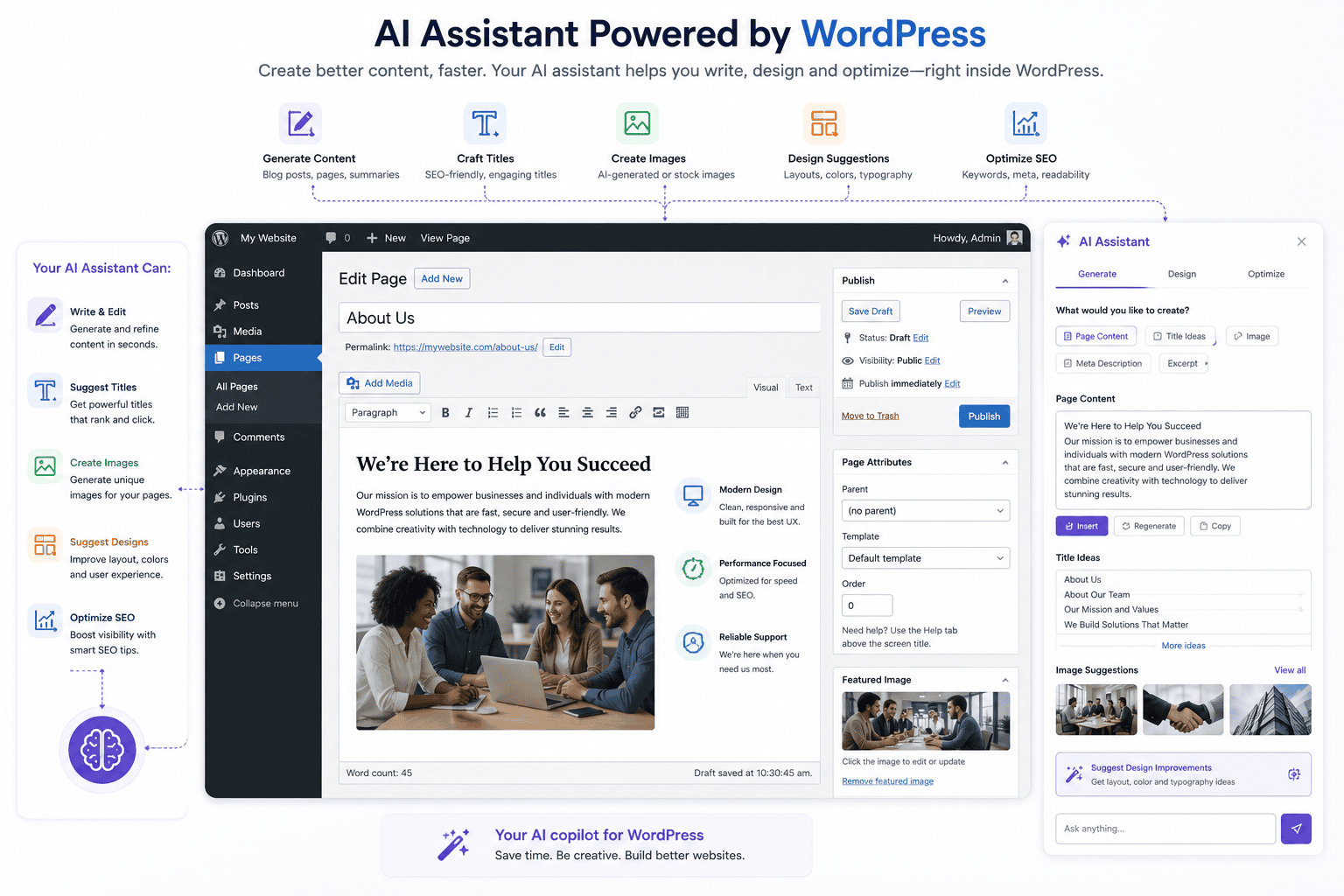
The official WordPress AI plugin currently provides experimental AI-powered writing and editing tools directly inside WordPress. Its documented capabilities include title generation, summaries, translations, image generation, ALT text, comment assistance, and other experiments.
WordPress 7.0 also introduced an AI Client in Core and an Abilities API-based foundation for AI functionality and workflows.
For designers, this means AI can increasingly help with tasks such as:
- Generating content
- Suggesting titles
- Creating images
- Translating content
- Generating summaries
- Suggesting ALT text
- Prototyping layouts
- Explaining code
- Creating custom functionality
However, AI should not be allowed to determine your entire design strategy.
Your audience should determine the design.
AI can accelerate the work.
Using AI to Plan a WordPress Homepage
You can use AI as a brainstorming assistant.
For example, provide the AI with:
- Website topic
- Target audience
- Main categories
- Brand style
- Primary goal
- Desired visitor action
Then ask it to suggest a homepage structure.
A possible result might be:
Hero
↓
What We Cover
↓
Featured Categories
↓
Latest Articles
↓
Popular Resources
↓
Newsletter
↓
About
↓
Footer
You can then review the structure and adapt it.
This is much more useful than simply asking AI:
“Design me a website.”
The better the context you provide, the more useful the suggestions tend to become.
WordPress Website Design for Bloggers
Bloggers should prioritize readability.
A good blog design should make it easy to:
- Find articles
- Read articles
- Discover related topics
- Search the website
- Navigate categories
- Subscribe
- Share useful content
Avoid turning every article into a complicated visual experience.
Content should remain the center of attention.
Use images, boxes, tables, buttons, and other elements only when they improve understanding.
WordPress Website Design for Businesses
Business websites usually need stronger conversion paths.
A typical structure might include:
Homepage
→
Services
→
Service Detail
→
Case Study
→
Contact
Each page should have a clear purpose.
A service page should explain:
- What the service is
- Who it is for
- What problem it solves
- What is included
- Why the business is qualified
- What the visitor should do next
Good design makes this information easy to scan.
WordPress Website Design for Affiliate Websites
Affiliate websites often contain product comparisons, guides, tutorials, and reviews.
The design should prioritize:
- Clear comparison tables
- Helpful explanations
- Product categories
- Search
- Related content
- Disclosure information
- Fast loading
- Mobile usability
Do not make every page look like an advertisement.
Visitors should be able to understand the information before making a decision.
Useful content should remain the focus.
WordPress Website Design for News and Technology Websites
Technology websites often publish frequently.
That makes information architecture particularly important.
You may need:
- Categories
- Tags
- Search
- Trending content
- Latest posts
- Related posts
- Author information
- Publication dates
Your homepage should distinguish between:
Latest
Featured
Popular
Categories
This helps visitors quickly understand what is new and what is important.
Common WordPress Design Mistakes
Too Many Pop-Ups
One pop-up may be useful.
Multiple interruptions can make a website frustrating.
Too Many Fonts
Keep typography consistent.
Excessive Animations
Animations should support the experience rather than distract from content.
Huge Images
Optimize image files before uploading them.
Confusing Navigation
Visitors should know where important pages are.
Weak Mobile Design
Always test pages on smaller screens.
Too Many Plugins
Install only what you need.
Poor Contrast
Make text easy to read.
No Clear CTA
Visitors should have an obvious next step.
Cluttered Sidebars
Every sidebar element should have a purpose.
A Simple WordPress Website Design Process
If you are starting a new website, follow this sequence.
Step 1: Define the Goal
Ask:
What should this website accomplish?
Step 2: Define the Audience
Understand who you are designing for.
Step 3: Plan the Sitemap
Determine your major pages and categories.
Step 4: Create a Wireframe
Plan the layout before focusing on visual details.
Step 5: Choose Typography
Select readable fonts and define heading levels.
Step 6: Choose Colors
Create a small, consistent color system.
Step 7: Build the Homepage
Create a clear introduction and navigation path.
Step 8: Create Content Templates
Standardize article and page structures.
Step 9: Optimize Images
Compress and correctly size visual assets.
Step 10: Test Mobile
Check every important page on smaller screens.
Step 11: Test Accessibility
Review contrast, headings, links, forms, and keyboard navigation.
Step 12: Test Performance
Check loading speed and remove unnecessary elements.
Step 13: Add SEO
Optimize titles, descriptions, headings, URLs, internal links, and structured content.
Step 14: Test Forms
Make sure contact and subscription forms actually work.
Step 15: Monitor and Improve
Use real visitor behavior to make future design decisions.
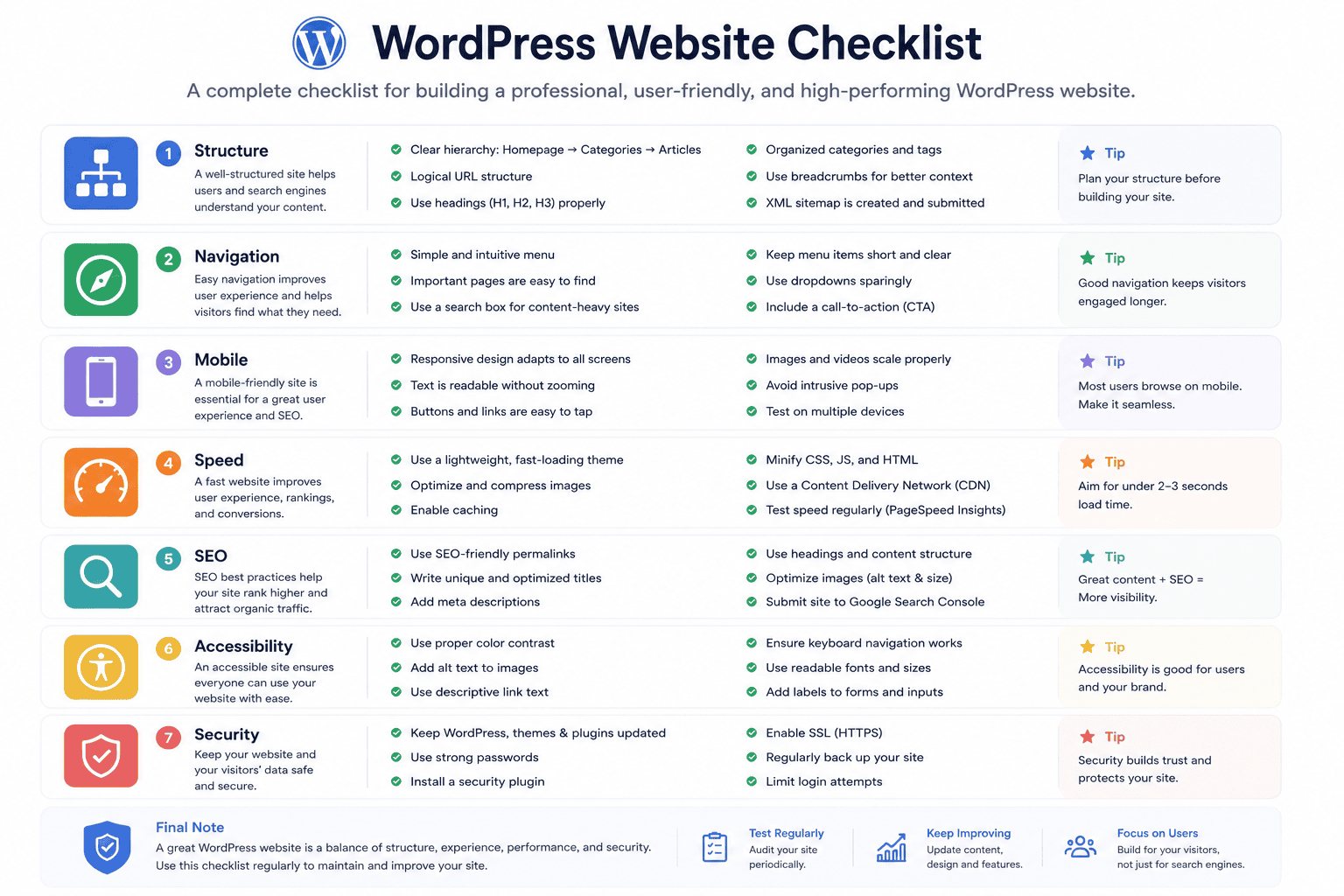
WordPress Website Design Checklist
Before launching a website, ask:
Navigation
- Is the main menu easy to understand?
- Can visitors reach important pages quickly?
Content
- Are headings clear?
- Are paragraphs readable?
- Are articles properly structured?
Mobile
- Does the site work on smartphones?
- Are buttons easy to tap?
- Is text readable?
Performance
- Are images optimized?
- Are unnecessary plugins removed?
- Is the website reasonably fast?
SEO
- Does every important page have a unique title?
- Are URLs readable?
- Are headings structured properly?
- Are internal links useful?
Accessibility
- Is text readable?
- Is color contrast sufficient?
- Are images described appropriately?
Trust
- Is contact information available?
- Are important policies accessible?
- Does the website look consistent?
The Role of Website Design in SEO
SEO is not only about keywords.
A visitor who reaches your page but cannot find the information they need is unlikely to have a good experience.
Good design supports SEO by helping users:
- Navigate the website
- Read content
- Discover related pages
- Understand page topics
- Find important information
- Interact with the site on mobile devices
Your design should therefore support your content strategy.
For example, if you publish detailed articles, your design should make those articles comfortable to read.
If you publish tutorials, your design should make screenshots and step-by-step instructions easy to follow.
If you run a business, your design should make your services and contact options easy to understand.
How to Combine AI and WordPress Website Design
AI can be useful throughout the design process.
Planning
Use AI to brainstorm sitemap structures.
Content
Use AI to create first drafts and content outlines.
Images
Use AI image tools to create custom visual concepts.
SEO
Use AI to brainstorm titles, descriptions, and related topics.
Accessibility
Use AI to review content structure and suggest descriptive ALT text.
Development
Use AI to explain code and help troubleshoot problems.
Testing
Use AI to create checklists for different device sizes and user journeys.
But always review the output.
AI can accelerate the process, but it does not understand your audience as well as you do.
Future of WordPress Website Design
WordPress is moving toward a more integrated design and AI ecosystem.
The official WordPress 7.0 release describes AI integration throughout the WordPress experience, including an AI Client in Core, the Abilities API, new workflow possibilities, and AI-assisted features such as image generation, title creation, excerpts, and ALT text.
WordPress is also continuing to develop AI tooling for developers. The WordPress Developer Blog now includes guides covering AI-powered plugins, image-generation plugins, and AI development workflows.
This means future website design may involve more natural-language interaction.
Instead of manually searching through settings for every task, a site owner may increasingly be able to describe the desired change and use AI-supported tools to help implement it.
But visual design fundamentals will not disappear.
Good websites will still need:
- Clear structure
- Readable typography
- Strong navigation
- Useful content
- Fast performance
- Accessibility
- Mobile usability
- Consistent branding
Technology changes.
Good design principles remain.
Final Thoughts
A successful WordPress website design does not need to be complicated.
The strongest websites often have something in common: they make it easy for visitors to understand and use them.
Start with structure.
Create clear navigation.
Use readable typography.
Keep the color system consistent.
Optimize images.
Design for mobile.
Pay attention to accessibility.
Reduce unnecessary plugins and visual distractions.
Build reusable content structures.
Then use AI where it genuinely saves time.
WordPress gives you the flexibility to create everything from a simple blog to a large publishing platform or business website. The Block Editor makes it possible to build rich layouts from reusable content components, while the expanding WordPress AI ecosystem is opening additional possibilities for content, design, development, and automation.
The goal should not be to create the most complicated website.
The goal is to create the most useful website for your audience.
Good design attracts attention.
Great usability keeps visitors engaged.
Useful content gives them a reason to return.
Frequently Asked Questions
What is WordPress website design?
WordPress website design is the process of planning and creating the visual appearance, structure, navigation, content layout, usability, and user experience of a WordPress website.
Is WordPress good for website design?
Yes. WordPress provides a flexible content management system with themes, plugins, blocks, templates, and other tools for creating many types of websites.
What makes a good WordPress website?
A good WordPress website should have clear navigation, readable content, responsive design, good performance, useful information, accessible interfaces, and a consistent visual identity.
How can I make my WordPress website look professional?
Use a consistent typography system, limited color palette, high-quality images, clear spacing, simple navigation, strong content structure, and responsive layouts.
Is the WordPress Block Editor good for web design?
The Block Editor provides blocks for text, media, design, widgets, theme elements, and embeds, making it useful for creating structured and media-rich pages.
Can AI help design a WordPress website?
Yes. AI can assist with website planning, content, image concepts, titles, summaries, code, and other design-related tasks. WordPress also has an official AI plugin with experimental AI-powered features.
How many plugins should a WordPress website have?
There is no universal ideal number. Install the plugins you genuinely need and evaluate their maintenance, security, compatibility, and performance impact.
Should a WordPress website be designed for mobile first?
Your website should at least be thoroughly tested on mobile devices. Mobile usability is important because visitors may access your site from many different screen sizes.
How important is website speed?
Website speed is important for usability and can affect how visitors experience your site. Optimize images, avoid unnecessary functionality, and monitor performance.
Can good website design improve SEO?
Good design can support SEO by improving navigation, content structure, mobile usability, internal linking, readability, and overall user experience.