10 Best Graphic Design Tools in 2026: Free and Paid Options Compared
- by Muhammad Raza
- 0 Comments
- 11 minutes read
- 20 Views
Graphic design software is no longer divided into a simple choice between “professional” and “beginner” applications.
The market has become much more fragmented.
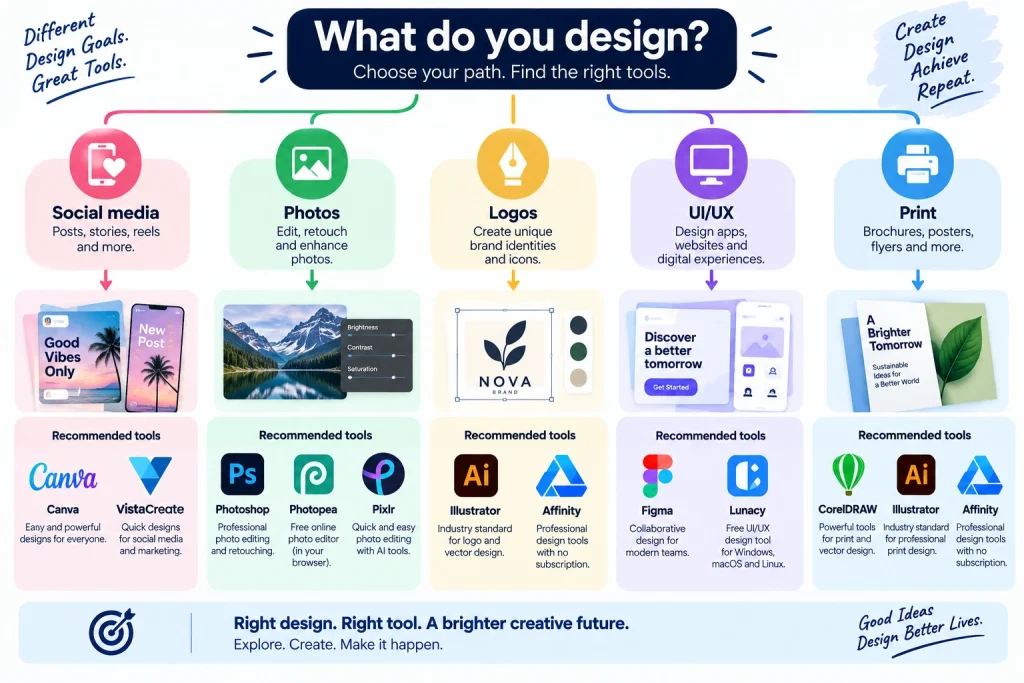
A social media designer may need fast templates and resizing. A brand designer may need precise vector control. A UI designer needs collaboration and developer handoff. A photo editor needs sophisticated raster tools. A print designer may care more about color control, typography, and production workflows.
That is why choosing a design tool in 2026 should start with the type of work you actually produce, rather than simply asking which software has the longest feature list.
There is also an interesting change happening in the market. Professional-grade design software is becoming available through free or unusually affordable alternatives, while established subscription products continue to add AI-assisted workflows.
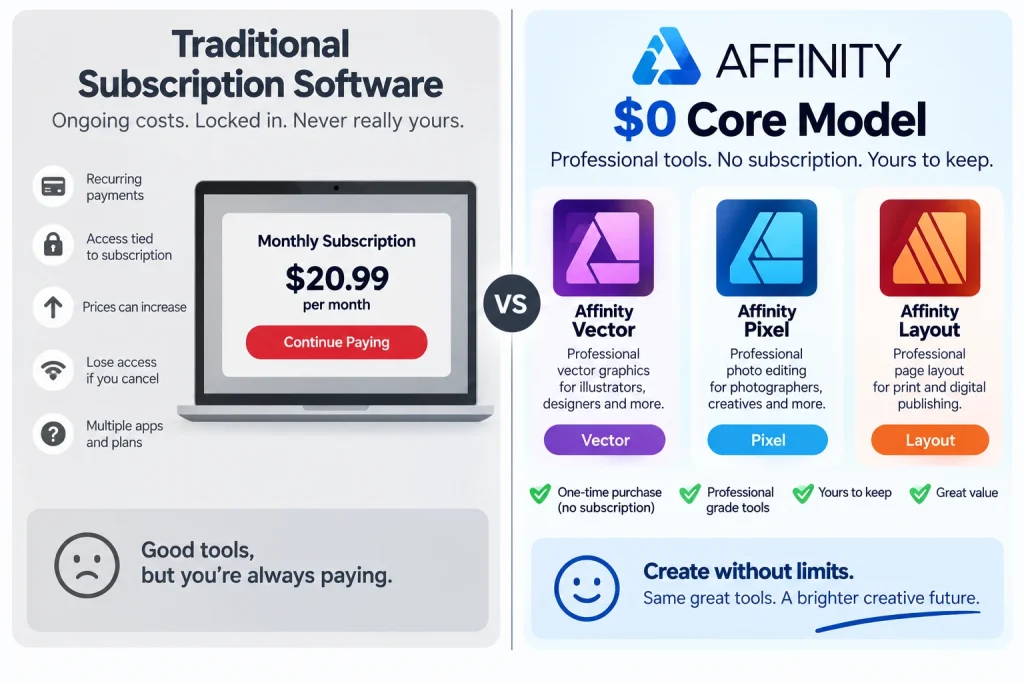
Affinity is a particularly important example: its current official offering is completely free and combines vector, pixel, and layout capabilities. Meanwhile, established products such as Photoshop and Illustrator continue to combine traditional design controls with generative AI features.
So instead of recommending one universal winner, this guide compares 10 tools according to the work they are best suited to handle.
Quick Comparison: 10 Graphic Design Tools
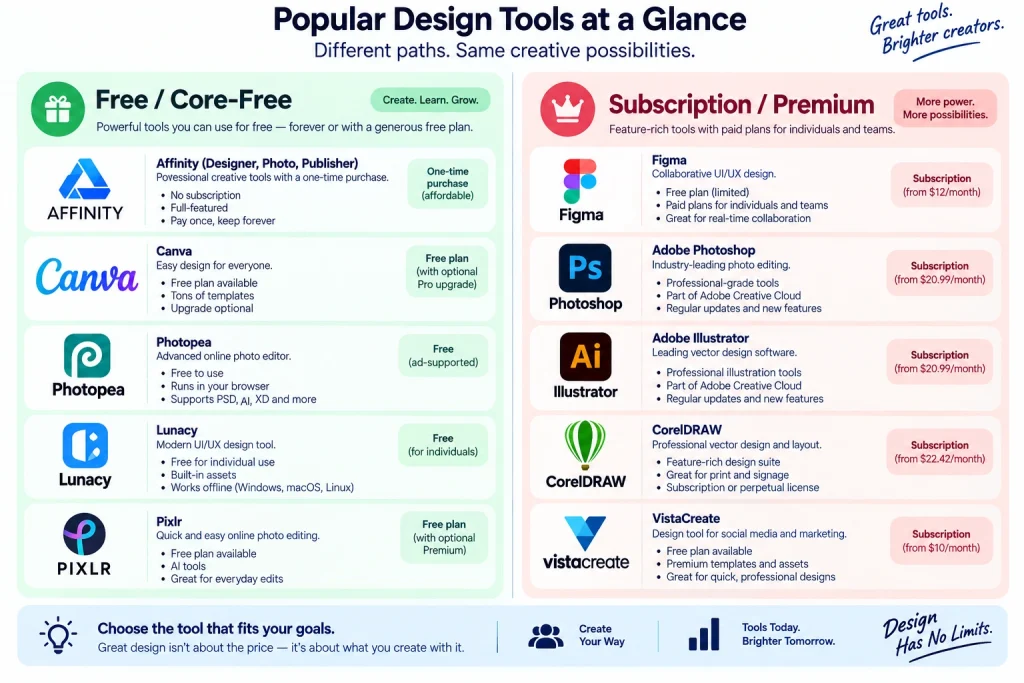
| Tool | Type | Free Option | Paid Starting Point* | Best For |
|---|---|---|---|---|
| Canva | Web/app | Yes | $15/mo equivalent annually | Social media, marketing, presentations |
| Adobe Photoshop | Desktop/web/mobile | Trial + limited mobile option | $22.99/mo | Photo editing and image-heavy design |
| Adobe Illustrator | Desktop/iPad | Trial | $22.99/mo | Logos, vectors, illustrations |
| Affinity | Desktop | Yes — fully free | $0 | Professional vector, pixel and layout work |
| Figma | Web/desktop | Yes | $16/mo | UI/UX and collaborative design |
| CorelDRAW | Desktop/web | Trial | Varies by plan | Print, vector, signage and production |
| VistaCreate | Web/mobile | Yes | $10/mo | Social content and marketing graphics |
| Photopea | Browser | Yes | $5/mo Premium | PSD editing and quick browser work |
| Pixlr | Web/mobile/desktop | Yes | $2.49/mo Plus | Quick image editing and AI-assisted graphics |
| Lunacy | Desktop/web | Yes | $11.99/mo Pro | UI design and lightweight professional work |
*Prices are current listed prices or starting prices where the vendor provides them. Some vendors offer different annual, monthly, team, regional, or purchase options.
1. Canva
Best for: Social media, marketing graphics, presentations and fast business design
Canva remains one of the easiest ways for a non-designer to produce something visually usable without spending hours learning a complex interface.
Its biggest advantage is not simply the editor. It is the combination of templates, stock assets, brand tools, resizing, collaboration and publishing-oriented workflows.
The current free plan includes a drag-and-drop editor, more than 1.6 million templates and millions of photos, videos, graphics and audio assets. Canva Pro currently lists at US$180 per year for one person, equivalent to $15 per month when paid annually.
Pricing
- Free: $0
- Pro: $180/year for one person
- Business: $250/year per person
Why it stands out
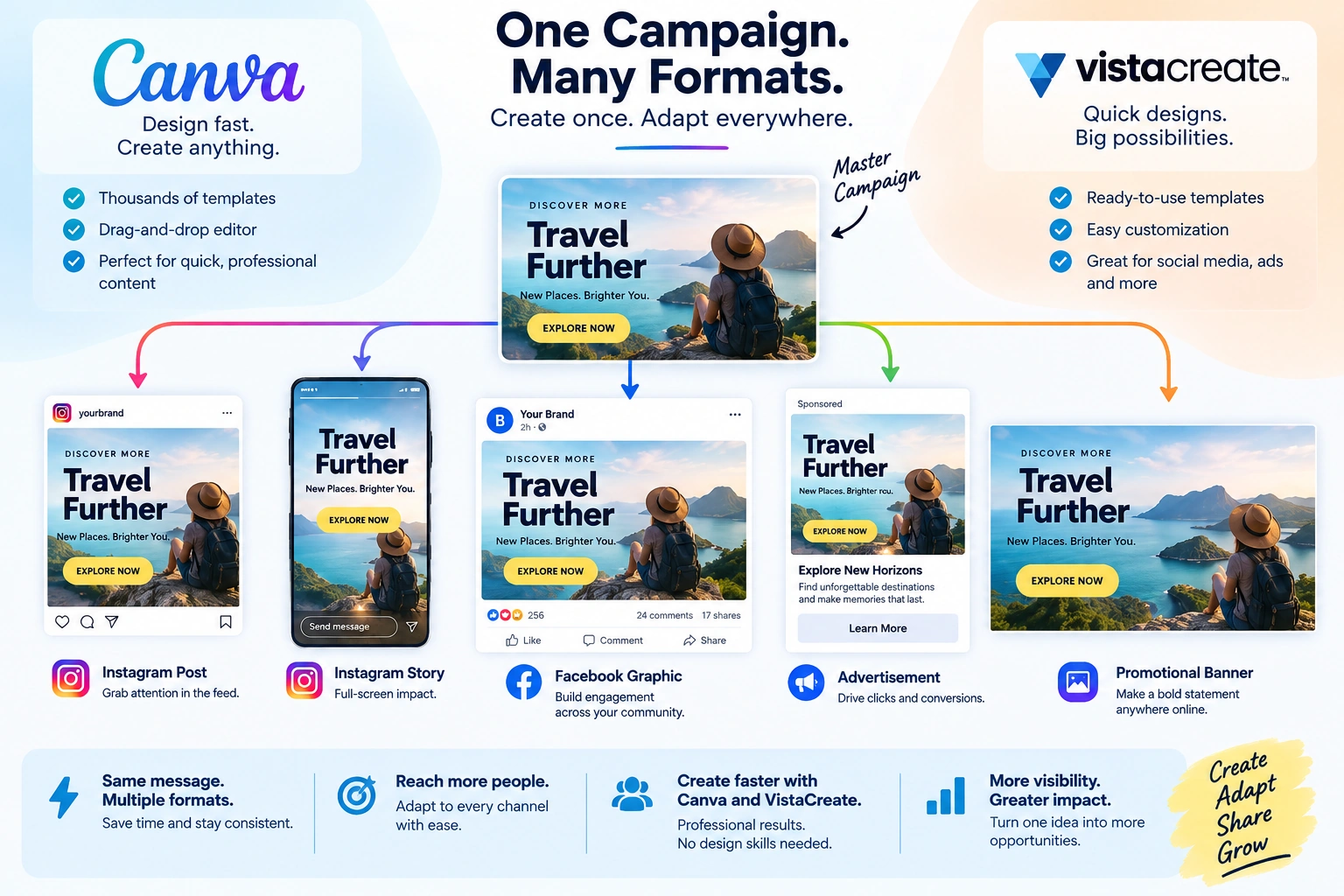
Canva is particularly useful when one design needs to become many pieces of content.
For example:
Blog article → Instagram graphic → Facebook post → presentation slide → promotional banner
That workflow can be more important to a small business than having the most advanced drawing tools available.
Where Canva is weaker
Canva is not my first choice for highly technical vector illustration, sophisticated photo compositing or production-heavy print work.
It is strongest when speed, repeatability and accessible design matter.
Best user
- Small businesses
- Freelancers
- Social media managers
- Marketing teams
- Beginners
- Content creators
2. Adobe Photoshop
Adobe Photoshop — Official Website
Best for: Photo editing, composites, image manipulation and advanced raster design
Photoshop remains relevant because serious image editing is difficult to replace with template-based design software.
It is designed around detailed control over pixels, selections, masks, layers, retouching and compositing. Adobe has also integrated generative AI capabilities such as Generative Fill and Generative Expand into the workflow.
The current standalone Photoshop plan is listed at US$22.99/month, billed annually on the annual-billed-monthly option. Adobe also offers a seven-day trial for the full application.
Pricing
- Full desktop/web/mobile plan: $22.99/month
- Free trial: 7 days
- Mobile: free version with premium features available through subscription
Why it stands out
Photoshop is still difficult to beat when the job involves:
- complex photo manipulation
- product image cleanup
- realistic composites
- advanced retouching
- detailed masking
- image restoration
- advertising visuals
Where Photoshop is weaker
Its learning curve is much steeper than Canva or VistaCreate.
If you only need to create a simple social media announcement, paying for Photoshop may be unnecessary.
Best user
- Professional designers
- Photographers
- Advertising designers
- Product photographers
- Creative agencies
- Advanced freelancers
3. Adobe Illustrator
Adobe Illustrator — Official Website
Best for: Logos, vector artwork, icons, illustrations and scalable graphics
Illustrator occupies a different space from Photoshop.
Photoshop primarily works with raster imagery. Illustrator is built around vector graphics, making it particularly suitable for artwork that needs to remain sharp at different sizes.
A logo designed in Illustrator can be used on a business card, website, billboard or large sign without becoming dependent on a fixed pixel dimension.
Adobe currently lists Illustrator at US$22.99/month, annual billed monthly.
Pricing
- Illustrator: $22.99/month
- Trial: available through Adobe
- Desktop + iPad: included in the single-app plan
Why it stands out
Illustrator is particularly strong for:
- logo systems
- icons
- vector illustrations
- packaging artwork
- typography-based graphics
- technical illustrations
- scalable brand assets
Where Illustrator is weaker
It can feel unnecessarily complicated for someone creating basic social posts.
There is also a meaningful learning investment. A beginner can open Illustrator quickly, but becoming efficient with the Pen tool, paths, shapes, appearance controls and vector construction takes practice.
Best user
- Brand designers
- Logo designers
- Illustrators
- Packaging designers
- Print designers
4. Affinity
Affinity by Canva — Official Website
Best for: Professional design without a software subscription
Affinity deserves special attention in a 2026 tool comparison because its current model changes the financial equation.
The official Affinity site currently lists the application at $0 and says its vector, pixel and layout tools are available without payment. A free Canva account is required, but Canva Pro is not required to access the core Affinity toolsets.
Pricing
- Affinity: $0
- Core vector tools: Free
- Pixel tools: Free
- Layout tools: Free
- Canva premium AI inside Affinity: requires an eligible premium Canva plan
Why it stands out
This is arguably the most important development in this particular list for designers who want professional capabilities without another monthly software bill.
Affinity brings together:
- vector design
- pixel editing
- page layout
- non-destructive editing
- professional export controls
Where Affinity is weaker
The ecosystem and workflow familiarity around Adobe remain substantial in many agencies and established production environments.
If a client specifically requires an Adobe-native workflow, compatibility requirements may matter more than the software’s price.
Best user
- Freelancers
- Independent designers
- Students
- Brand designers
- Print designers
- Designers looking to reduce subscriptions
5. Figma
Best for: UI design, UX design, prototypes and collaborative product work
Figma is different from most of the tools on this list because its biggest strength is not simply drawing.
It is about designing together.
A product designer can create an interface, another designer can comment on it, a developer can inspect the design, and stakeholders can review the same project without repeatedly exchanging large design files.
Figma’s current Starter plan is free. Its Professional plan lists a Full seat at $16/month, with separate Dev and Collab seats.
Pricing
- Starter: Free
- Professional Full seat: $16/month
- Professional Dev seat: $12/month
- Professional Collab seat: $3/month
Why it stands out
Figma is especially useful for:
- websites
- mobile apps
- dashboards
- wireframes
- prototypes
- design systems
- developer handoff
- remote collaboration
Where Figma is weaker
It is not intended to replace Photoshop for advanced photo manipulation or Illustrator for every type of illustration.
Best user
- UI designers
- UX designers
- SaaS teams
- Product designers
- Web designers
- Developers collaborating with designers
Video / Learning
6. CorelDRAW
Best for: Print, signage, vector design and production-oriented graphics
CorelDRAW remains particularly relevant in print-heavy design environments.
Its current Graphics Suite supports vector illustration, layout, photo editing and typography. CorelDRAW offers subscription and one-time purchase options, alongside a 15-day free trial.
Pricing
Corel currently offers:
- Monthly subscription
- Annual subscription
- One-time purchase
- 15-day free trial
Because the price can differ according to purchase option, region and offer, the official pricing page is the safer place to confirm the amount before purchasing.
Why it stands out
CorelDRAW is worth considering for:
- signs
- banners
- print layouts
- packaging
- vector artwork
- typography
- production graphics
Its print-oriented capabilities can make it particularly useful where the final destination is a physical product rather than a social media feed.
Where it is weaker
For modern collaborative product/UI design, Figma is generally a more natural fit.
For advanced photography, Photoshop has a stronger ecosystem.
Best user
- Print designers
- Sign designers
- Packaging designers
- Production teams
- Vector artists
7. VistaCreate
VistaCreate — Official Website
Best for: Social media and marketing graphics on a budget
VistaCreate sits close to Canva in the market, but it is worth considering separately rather than treating it as a simple copy.
The current Starter plan is free and includes more than 100,000 templates, over 1 million creative assets and social scheduling. The current Pro plan is listed at $10/month and supports up to 10 team seats.
Pricing
- Starter: $0
- Pro: $10/month
- Free trial: 14 days for Pro
Why it stands out
VistaCreate is useful when a business needs to produce:
- social media graphics
- promotional posts
- advertisements
- branded visuals
- simple animations
- marketing content
The Pro plan also includes brand kits, resizing, AI features, version history and collaboration.
Where it is weaker
It is not designed to replace Photoshop for sophisticated image manipulation or Illustrator for advanced vector construction.
Best user
- Small businesses
- Social media managers
- Marketing freelancers
- Content creators
- Small teams
Video / Learning
8. Photopea
Best for: Photoshop-style editing directly in a browser
Photopea is one of the most useful options for people who need advanced image editing but do not want to install a large desktop application.
I would put Photopea on the shortlist when the job is occasional PSD editing, a quick correction on a different computer, or a project where installing full desktop software is unnecessary.
It supports raster and vector graphics and can handle everything from resizing and basic image adjustments to more complex design and illustration work.
Pricing
- Free: $0
- Premium: $5/month
- Free version includes advertising
The free version is supported by advertising. Photopea also offers a Premium account, listed at $5/month, primarily removing advertising rather than locking the core editor behind a subscription.
Why I would choose it
Photopea becomes especially useful when you receive a PSD file but do not have Photoshop installed. That makes it a practical fallback for freelancers, students and shared-computer situations rather than a universal replacement for a desktop production workflow.
It can also work with many common design formats and operates inside the browser.
Another interesting characteristic is privacy: Photopea says its editor runs on the user’s device and files do not leave the computer during normal editing.
When I would not choose it
The browser experience is not necessarily the best environment for enormous production files or long, complex professional workflows. If a designer spends most of the day inside Photoshop or another full desktop application, switching tools for every task may create more friction than it removes.
Editorial verdict
A strong browser-based PSD option when installation is the problem; less compelling as the primary tool for heavy production work.
Best user
- Students
- Freelancers
- Beginners
- Occasional designers
- People working with PSD files
- Users on shared computers
Video / Learning
The Most Practical 2026 Design Stack
A freelancer does not necessarily need ten subscriptions.
A lean setup could look like this:
Budget setup
Affinity + Canva Free + Photopea
This combination covers professional design, quick social content and browser-based image editing without requiring a recurring professional design subscription.
Social media setup
Canva + VistaCreate
Useful for businesses producing a high volume of branded social content.
Professional brand design setup
Illustrator + Photoshop
A traditional but still powerful combination for vector identity work and advanced image editing.
Product design setup
Figma + Photoshop
Figma handles interfaces and product design while Photoshop handles image assets that need deeper editing.
Subscription-conscious professional setup
Affinity + Figma + Photopea
This combination is particularly interesting for independent designers who want professional capabilities while controlling recurring software costs.
What Changed in the Graphic Design Tool Market in 2026?
One of the clearest trends is that the definition of a premium design tool is changing.
Affinity’s move to a free model is a significant example.
At the same time, established companies are not simply competing through traditional features. AI-assisted generation, object removal, image expansion, automatic resizing, content creation and workflow automation are becoming normal parts of design applications.
Figma is expanding beyond basic interface design into broader product workflows, while Canva is combining design, AI, brand management and content production.
This means designers should stop asking:
“Which software is the most powerful?”
and start asking:
“Which software removes the most friction from the work I actually sell?”
That is a much more useful purchasing question.
Frequently Asked Questions
1. What is the best graphic design tool in 2026?
There is no single best tool for every designer. Canva is an excellent general-purpose choice, Affinity offers unusually strong free professional capabilities, Photoshop is stronger for image editing, Illustrator for vector work, and Figma for UI/UX.
2. What is the best free graphic design software in 2026?
Affinity is one of the strongest free professional options because its current core vector, pixel and layout capabilities are available without payment.
Photopea, Canva, Figma, VistaCreate, Pixlr and Lunacy also have meaningful free options.
3. Is Canva still worth using in 2026?
Yes. Canva is particularly useful when speed, templates, branding, collaboration and multi-format content production are more important than advanced professional image manipulation.
4. Is Affinity really free?
Yes. Affinity’s current official offering states that its vector, pixel and layout tools are available free of charge. A free Canva account is required, but Canva Pro is not required for the core Affinity application.
5. Is Photoshop better than Canva?
For advanced image editing, Photoshop is substantially more appropriate. For quick marketing graphics, templates and everyday business content, Canva may be more efficient.
6. Is Figma only for web designers?
No. Figma is primarily associated with UI/UX and product design, but it can also be used for presentations, graphics, wireframes, prototypes and collaborative visual work.
7. What is the cheapest paid graphic design tool in this list?
Pixlr currently has a Plus plan listed at $2.49/month, while Photopea Premium is listed at $5/month.
8. Which tool is best for logo design?
Illustrator and Affinity are stronger choices for serious logo creation because vector artwork can scale without depending on a fixed pixel resolution.
9. Which tool is best for social media graphics?
Canva and VistaCreate are particularly practical because they combine templates, resizing and marketing-oriented content workflows.
10. Do I need to pay for multiple design tools?
Usually not.
Start with one primary tool. Add another only when a specific project requires capabilities your main application does not provide.
Final Verdict
The biggest lesson from the 2026 graphic design market is that price alone no longer separates professional tools from beginner tools.
A designer can now build a surprisingly capable workflow without paying for a large collection of subscriptions.
If I were organizing the tools by purpose rather than popularity, the shortlist would look like this:
| Need | Best Choice |
|---|---|
| Best overall for beginners | Canva |
| Best free professional option | Affinity |
| Best photo editor | Photoshop |
| Best vector/logo tool | Illustrator |
| Best collaborative UI tool | Figma |
| Best for print-focused work | CorelDRAW |
| Best low-cost social design tool | VistaCreate |
| Best browser-based PSD editor | Photopea |
| Best inexpensive AI/image editor | Pixlr |
| Best free UI/design alternative | Lunacy |
The right tool is therefore not the one with the largest feature list.
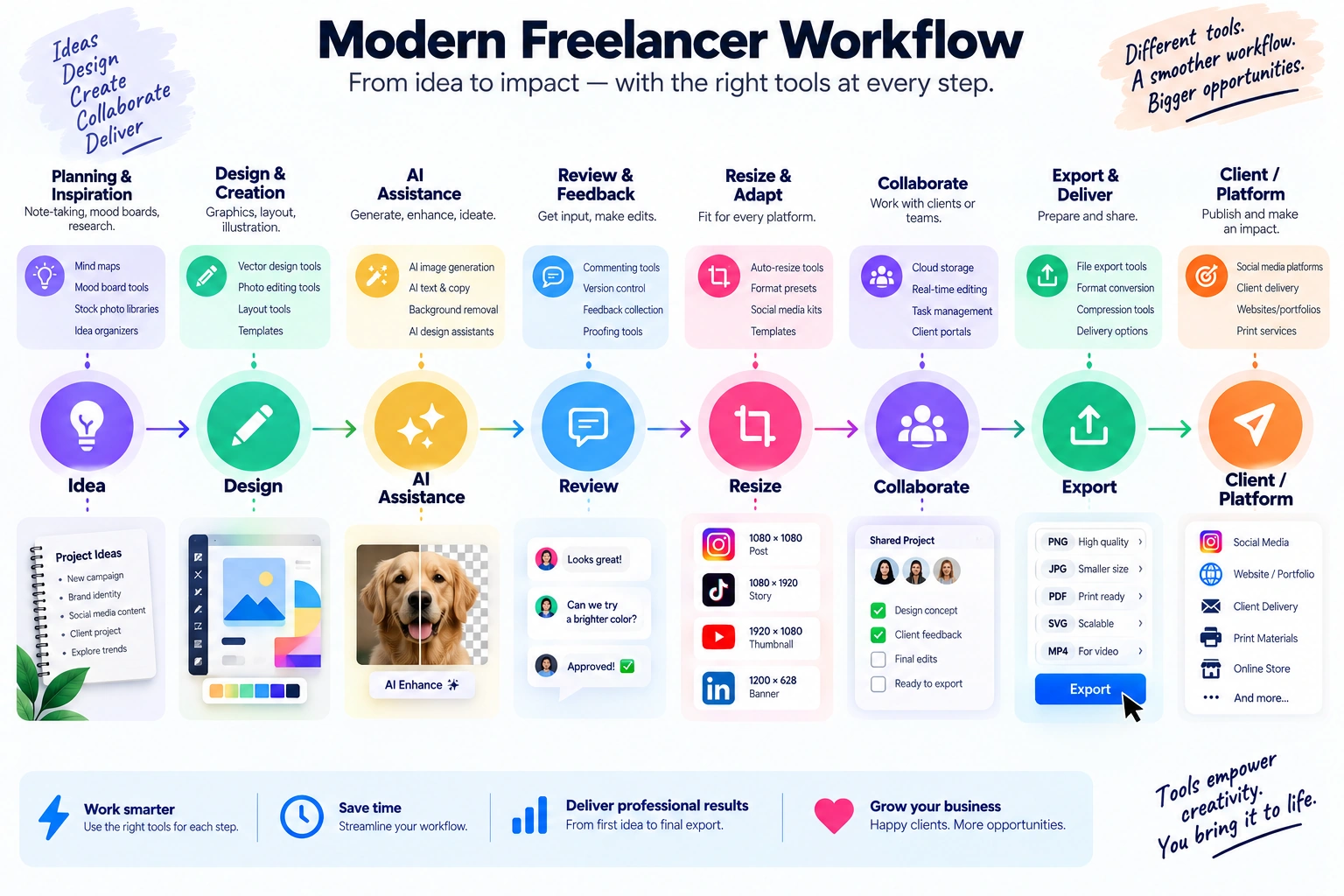
It is the one that lets you move from idea → finished design → usable output with the least unnecessary friction.