Google Search Console Multimodal Search Report: How to Track Image Search in 2026
Google Search Console is adding a new way for website owners to understand how people discover pages through images. Announced September 24, 2026, its multimodal search reporting brings a filter to Performance reports for searches that use Lens, Circle to Search on Android, image uploads to Google Search, and Chrome’s “Search this image” feature. The rollout is global, and metrics appear for sites that receive this kind of search activity.
For publishers, ecommerce teams, designers, and service businesses, this is a practical reason to audit image usefulness, context, and accessibility. The report does not mean every image search will generate measurable traffic, and it does not guarantee improved rankings. It gives site owners another lens for examining how visual content is discovered.

What is multimodal search?
Multimodal search lets a person search using an image or a combination of visual and text input, rather than relying only on typed keywords. Someone might point a phone camera at an object, circle something on a screen, upload a picture, or use a browser’s image-search option to find related information.
Google’s new Search Console reporting is intended to help site owners analyze performance associated with these visual search interactions. The announcement identifies Lens, Circle to Search on Android, image uploads to Google Search, and Chrome’s right-click “Search this image” feature as included sources.
Where to find the new Search Console report
- Sign in to Google Search Console and choose the correct verified property.
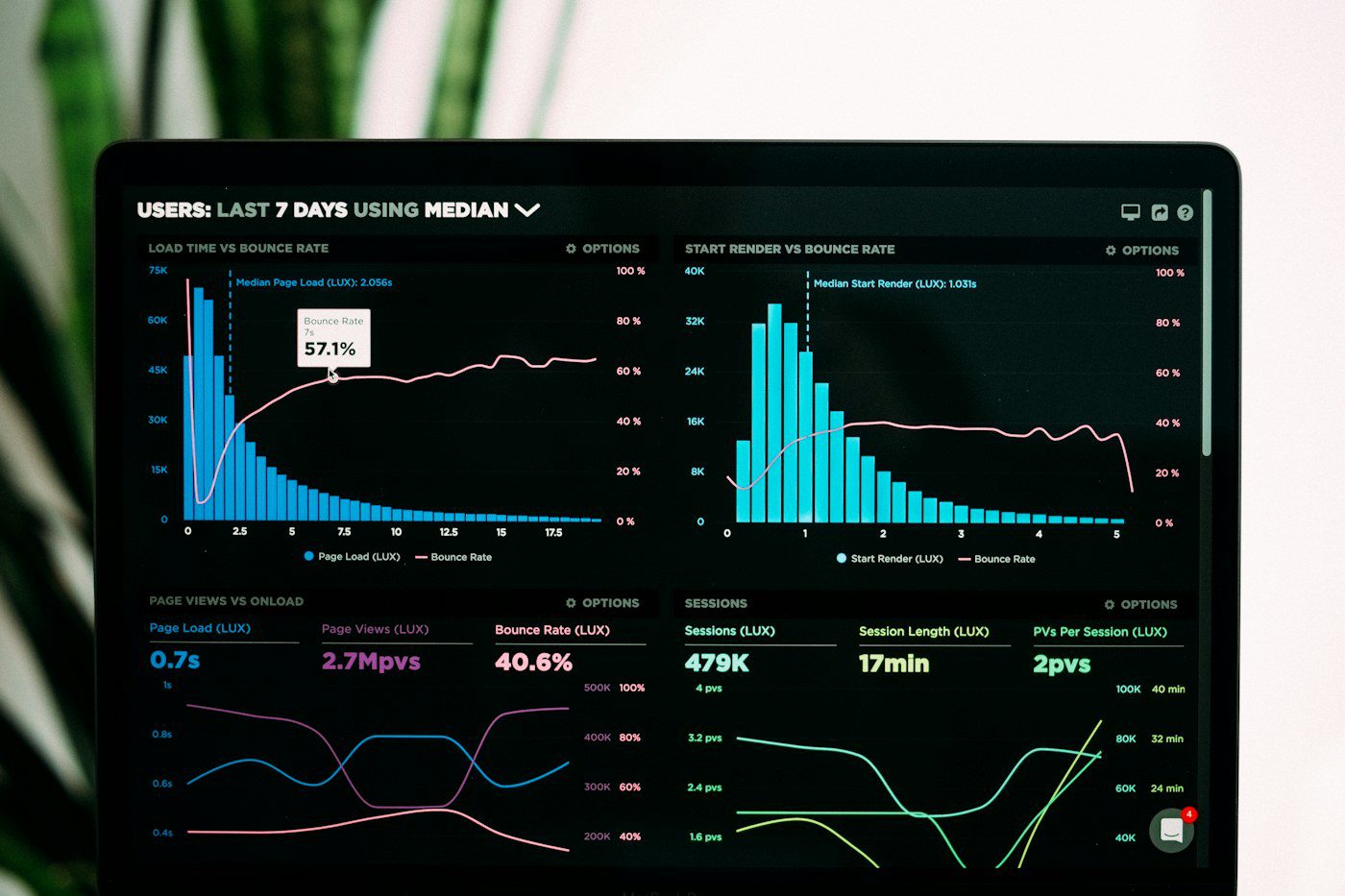
- Open the Performance report for Search results.
- Look for the new multimodal search type filter in the report controls.
- Apply the filter and review the available clicks, impressions, and page/query dimensions shown for your property.
- Use Export if you want to examine the data in a spreadsheet or combine it with your own reporting.
Google says the feature is rolling out globally beginning September 24, 2026. The announcement describes the multimodal filter in both the Search results Performance report and the Generative AI features report. You may not see meaningful metrics immediately: reporting is expected to show this data when a site receives traffic from these queries. If the filter or data is not yet visible in your property, check again later and consult Google’s announcement.
How to interpret the data without overreading it
Use the report as a diagnostic view, not as a standalone measure of business success. Impressions indicate appearances in the reported search context; they are not the same as visits, conversions, sales, or qualified leads. Compare the data with page analytics and business outcomes where you have reliable measurement.
- Look for pages receiving visual-search impressions. These may reveal which product images, diagrams, tutorials, or other visual assets are being surfaced.
- Compare page groups over time. Separate product pages, how-to articles, portfolio pages, and other page types rather than treating all images as equivalent.
- Review clicks alongside impressions. A change in one metric does not automatically explain the cause of a change in another.
- Export for deeper analysis. Keep date ranges and filters consistent when comparing periods.
- Record changes you make. If you update an image, caption, page copy, or internal link, note the date so later analysis has context.

Prepare images so they help people and search engines
Search reporting is only one reason to improve visual content. Images should help visitors understand the page, inspect a product, follow a process, or compare options. These practices also make content easier to use for people relying on assistive technology or slower connections.
Use images that add information
Choose original product photographs, clear screenshots, diagrams, labeled examples, or process images that support the page’s purpose. Avoid decorative stock imagery that does not clarify the subject. Do not use an image merely to repeat a keyword visually.
Write useful alternative text
Alt text should describe the meaningful information in an image in context. For a product image, identify the item and any relevant visible distinction. For a diagram, summarize the information it communicates. If an image is purely decorative, use the appropriate empty-alt treatment rather than stuffing it with search terms.
Give images nearby context
Use descriptive headings, captions where helpful, and surrounding text that explains why the image matters. Keep the image relevant to the page and ensure the page itself answers the visitor’s likely question.
Keep image files accessible and efficient
Use appropriate dimensions and modern compression where your platform supports it. Avoid unnecessarily huge uploads, but preserve enough detail for the image’s purpose. Ensure important images are not blocked from crawling and that the page works on mobile devices.

A simple visual-content audit for a WordPress site
- Choose a representative set of pages. Start with pages important to your business, such as service pages, product pages, portfolio entries, and high-value tutorials.
- Check every important image. Confirm it is relevant, clear, appropriately sized, and available to visitors.
- Review alt text and captions. Replace missing, vague, or keyword-stuffed descriptions with accurate context-aware text.
- Check page context. Make sure the heading and nearby copy explain the image and match the visitor’s intent.
- Review Search Console data. Use the multimodal filter where available, export a baseline, and revisit after a reasonable period.
- Make one class of improvement at a time. For example, update alt text across a group of product pages, then record the date and evaluate later. Avoid attributing every metric movement to one edit without evidence.
For broader site usability, see our WordPress website design tips. If you are reviewing how Google’s AI-powered search features surface site content, our Google AI Search Console insights guide covers that separate reporting and control topic.

Common mistakes to avoid
- Assuming multimodal reporting covers every image-based search experience on every platform.
- Interpreting impressions as visits, purchases, or proof of ranking improvement.
- Changing many page elements at once and then treating a metric change as proof of one cause.
- Writing alt text as a list of keywords instead of describing the image’s purpose.
- Using generic or unrelated images that do not help visitors understand the page.
- Expecting every site to show data immediately, even if it receives little or no traffic from the reported search types.
Frequently asked questions
Does the new report show Google Lens traffic?
Google’s announcement says the reporting includes searches with Lens, Circle to Search on Android, image uploads to Google Search, and Chrome’s “Search this image” feature. The exact data available depends on activity for your property and the report’s available dimensions.
Why can’t I see multimodal data yet?
The feature is rolling out globally, and Google says metrics appear if your site receives traffic from these queries. Confirm that you selected the correct property and report, then check again as the rollout and data availability progress.
Do I need special schema for this report?
Google’s announcement describes a Search Console reporting filter; it does not state that a new schema type is required to access the report. Continue using accurate structured data where appropriate, but do not add markup solely on the assumption that it unlocks multimodal reporting.
Will optimizing images guarantee more search traffic?
No. Relevant, accessible images and useful page context are sound content practices, but no single image edit guarantees impressions, clicks, rankings, or conversions.
Official reference
- Google Search Central: Announcing web multimodal Search performance reporting in Search Console — September 24, 2026 announcement describing included search experiences, the report filter, export, and rollout.
- Google Search Central: Google Images SEO best practices — guidance for image discoverability and implementation.
- Google Search Central: SEO Starter Guide — foundational guidance for creating useful, accessible pages.
Editorial note: Search Console interfaces and reporting availability can change during rollout. Use Google’s current documentation for the latest interface details and interpret performance data in context.