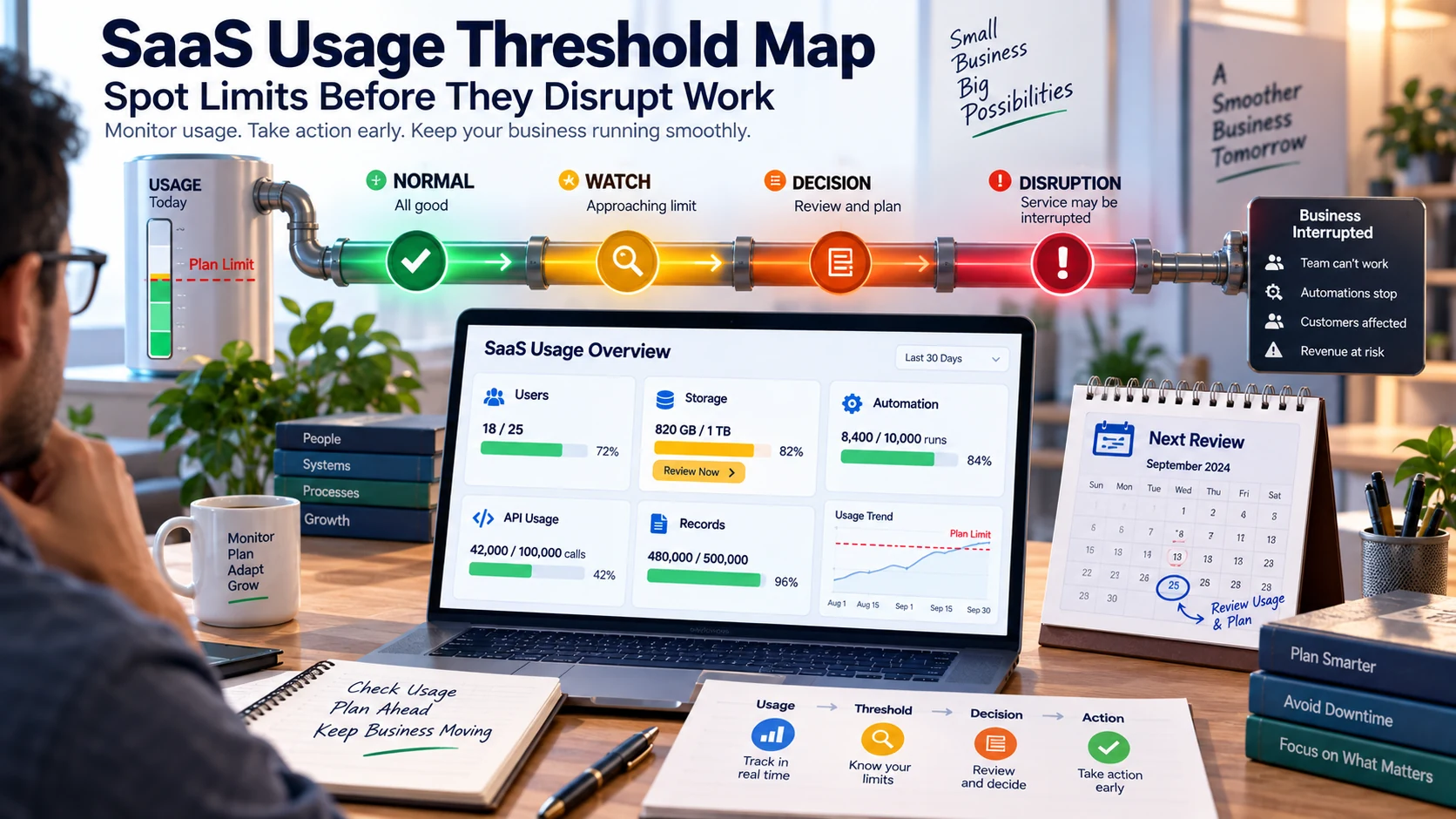
SaaS Usage Threshold Management for Small Businesses
- by Muhammad Raza
- 0 Comments
- 18 minutes read
- 54 Views
SaaS usage threshold management helps small businesses identify important software limits, set warning points, assign owners, and act before usage disrupts work or creates unexpected costs.
A team adds a few more users. A project creates hundreds of additional records. Automated actions increase. File storage grows. API calls rise. A marketing campaign produces an unexpected spike.
Then a previously invisible limit suddenly becomes an operational problem.
The difficult part is that SaaS limits are not always presented as one obvious number. A platform may have separate allowances for users, records, storage, automations, API calls, messages, transactions, or other resources. Some services also distinguish between warnings, included allowances, hard limits, and optional extra usage.
For example, current SaaS products can provide usage alerts before a threshold is reached, while a separate limit may actually restrict the affected capability.
That creates a useful distinction for small businesses:
Knowing your subscription plan is not the same as knowing your operating capacity.
A small team does not need a complicated FinOps department to handle this. It needs a simple way to identify important limits, understand what happens near them, assign responsibility, and decide what action should happen before the limit becomes disruptive.
That is the purpose of a SaaS Usage Threshold Map
What Is a SaaS Usage Threshold Map?
A SaaS Usage Threshold Map is a small-business record that connects:
- the SaaS application,
- the resource being consumed,
- the current usage,
- the plan allowance,
- the warning point,
- the disruption point,
- the person responsible,
- the expected business consequence,
- and the action to take next.
The goal is not to record every number inside every application.
The goal is to identify the limits that could interrupt meaningful work.
Consider a small agency using a project-management platform.
It may have:
- 12 team members,
- 3,800 stored records,
- 8,000 automation runs,
- 70 GB of files,
- several external integrations,
- and multiple active workspaces.
The agency does not necessarily need to monitor all of those figures equally.
If the automation allowance is close to its plan ceiling while file storage is barely being used, the automation threshold deserves more attention.
This changes the question from:
“What limits does our software have?”
to:
“Which limits could change how our business operates?”
That is a much more useful question.
Why SaaS Limits Become Operational Problems
A usage limit rarely arrives as a dramatic technology failure.
More often, it develops quietly.
A team grows.
A workflow becomes more automated.
A campaign creates more records.
A new integration sends more data.
Someone uploads years of files.
A new feature changes how usage is counted.
The business continues working until one capability behaves differently than expected.
That difference might mean:
- a workflow stops,
- new records cannot be created,
- a user cannot be added,
- additional usage becomes billable,
- an automation pauses,
- an integration is throttled,
- storage becomes unavailable,
- or someone has to make a rushed purchasing decision.
Usage alerts can provide early warning, but the alert itself does not decide what the business should do. Platforms may distinguish between an alert that informs an administrator and a limit that actually restricts usage.
The missing layer is usually business interpretation.
What does 80% usage mean for us?
What happens at 100%?
Who checks it?
What decision should be made?
A Usage Threshold Map answers those questions before the answer is needed under pressure.
Start With the Resource, Not the Subscription
A common mistake is documenting SaaS plans like this:
Project Tool — Professional Plan
That tells you almost nothing about operational capacity.
Instead, break the subscription into the resources that actually matter.
The Six Resource Families
1. People
Examples:
- seats,
- members,
- guests,
- administrators,
- external collaborators.
A people limit becomes important when adding another person affects whether work can begin.
2. Stored Data
Examples:
- records,
- contacts,
- projects,
- tickets,
- database rows,
- customer profiles.
These limits can become significant when a business has years of accumulated information.
3. Storage
Examples:
- documents,
- images,
- videos,
- attachments,
- backups.
Storage often grows gradually, making it easy to ignore until the remaining capacity becomes small.
4. Automated Activity
Examples:
- automation runs,
- workflow actions,
- tasks,
- executions,
- scheduled processes.
This category deserves special attention because business growth can increase automated usage without anyone intentionally changing the system.
5. Technical Consumption
Examples:
- API calls,
- requests,
- processing units,
- messages,
- compute units,
- data transfer.
Technical limits may be less visible to nontechnical employees but can still affect customer-facing operations.
6. Commercial Consumption
Examples:
- billable transactions,
- usage credits,
- paid messages,
- metered events,
- additional usage charges.
These are not always hard operational limits.
Sometimes they create a financial decision instead.
The Threshold Ladder
Once the important resources are identified, do not record only the maximum.
Create a four-level Threshold Ladder.
Level 1 — Normal
Usage is comfortably below the warning point.
No special action is required.
Example:
Automation usage: 42%
The owner simply continues normal monitoring.
Level 2 — Watch
Usage has reached a level that deserves attention.
Example:
Automation usage: 70%
The owner checks whether the increase is temporary or becoming the new normal.
Level 3 — Decision
Usage is close enough to the limit that a business decision should be made.
Example:
Automation usage: 85%
Possible actions:
- reduce unnecessary usage,
- remove unused workflows,
- change process design,
- purchase additional capacity,
- move work elsewhere,
- or accept the additional cost.
Level 4 — Disruption
The threshold has been reached or the business is already experiencing an effect.
Example:
Automation capacity exhausted.
This is no longer a monitoring issue.
It is an operating issue.
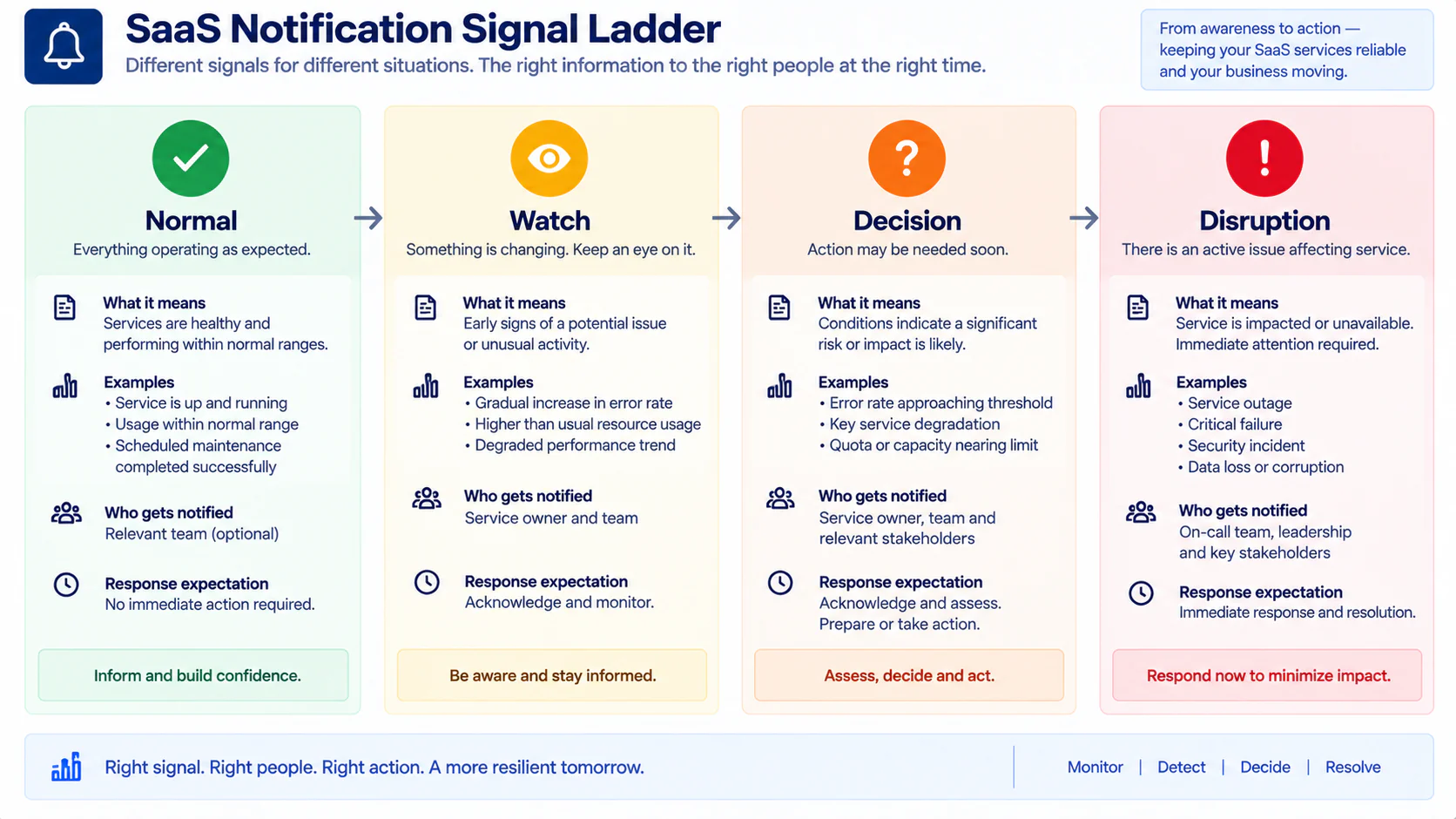
The important insight is that 100% should not be your first moment of attention.
A useful threshold exists before the actual limit.
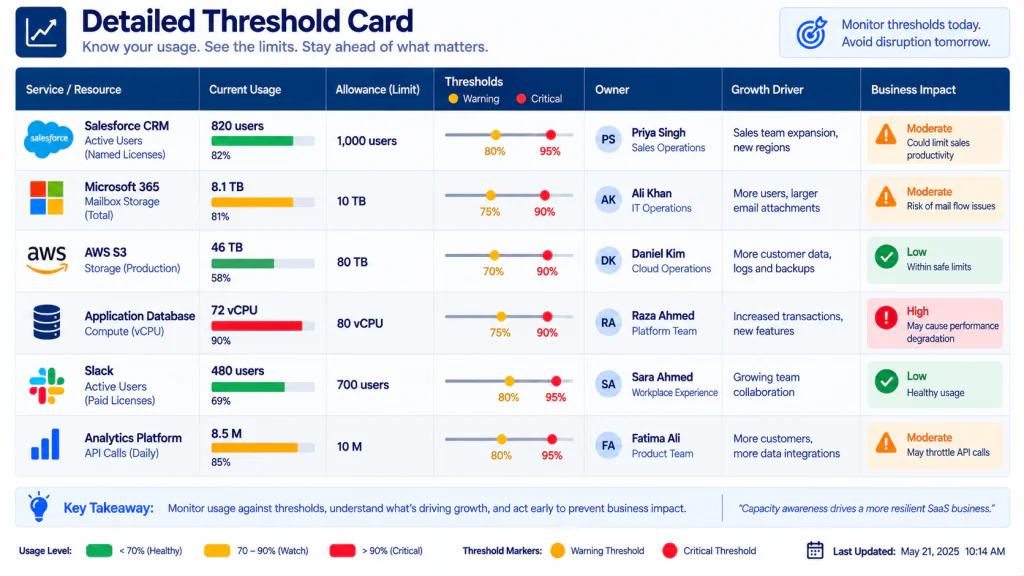
Build a Usage Threshold Card
For every important resource, create a small Usage Threshold Card.
Use these fields:
| Field | What to record |
|---|---|
| Application | SaaS product name |
| Resource | What is being consumed |
| Current usage | Current approximate level |
| Included allowance | Plan capacity |
| Watch point | Early warning threshold |
| Decision point | Point requiring action |
| Disruption point | What happens at the limit |
| Owner | Person responsible |
| Review frequency | Weekly, monthly, etc. |
| Growth driver | What causes usage to increase |
| Planned response | What happens near the limit |
| Last verified | Date checked |
This is intentionally simple.
A small business should be able to understand the card in less than a minute.
The “What Changes?” Question
Do not stop at:
“We are at 82%.”
Ask:
“What changes when we reach the next threshold?”
That question turns a number into an operational decision.
For example:
Storage
82% usage may mean:
Review old files and archive unnecessary material.
User seats
82% usage may mean:
Check upcoming hires and determine whether another seat is needed.
Automation
82% usage may mean:
Identify which workflows are consuming the most executions before purchasing additional capacity.
API usage
82% usage may mean:
Review the source of the increase and confirm that the growth is expected.
Usage-based billing
82% usage may mean:
Estimate the likely month-end cost before allowing usage to continue unchecked.
The threshold is not the decision.
The threshold tells you when to make the decision.
Separate Growth From Waste
High usage does not automatically mean something is wrong.
This is one of the most important rules in the entire system.
Suppose a CRM has increased from 60% to 85% usage.
There are at least four possible explanations.
Healthy Growth
The company gained customers and legitimately created more records.
Temporary Growth
A migration or seasonal campaign temporarily increased usage.
Process Waste
An automation is creating unnecessary records or repeated actions.
Unexpected Growth
Something changed and nobody knows why.
These situations should not receive the same response.
A business that automatically upgrades every time usage rises may spend money solving a problem that should have been investigated.
A business that automatically deletes data to stay below a limit may create a much bigger problem.
Use the Growth Explanation Test:
- What increased?
- When did it increase?
- What business activity caused it?
- Is that activity expected?
- Is the increase temporary or persistent?
- What happens if the current rate continues?
Only then decide what to do.
Add a Growth Driver to Every Important Threshold
A useful Threshold Card should contain one additional field:
Growth Driver
Examples:
- new employees,
- new customers,
- seasonal campaigns,
- increased automation,
- longer data retention,
- more file uploads,
- higher transaction volume,
- additional integrations,
- increased API traffic.
This helps the team forecast the limit instead of merely observing it.
For example:
Current automation usage: 68%
Growth driver: monthly customer onboarding
Expected next-month increase: higher onboarding volume
The exact forecast does not need to be mathematically sophisticated.
Even a simple statement such as:
“If onboarding volume remains at the current level, review this threshold again before the next campaign.”
is more useful than a dashboard number nobody interprets.
Create a Threshold Ownership Rule
A limit without an owner is just information.
Assign one person to each important threshold.
The owner does not necessarily need to be the administrator of the SaaS application.
The owner is the person responsible for noticing the threshold and initiating the appropriate decision.
For example:
| Resource | Owner | Decision |
|---|---|---|
| User seats | Operations | Review hiring plan |
| File storage | Project lead | Archive unnecessary files |
| Automation runs | Systems owner | Investigate growth |
| API usage | Technical owner | Review integration traffic |
| Usage-based spend | Finance owner | Review expected cost |
This prevents the classic situation where everyone assumes someone else is watching.
Do Not Treat All Thresholds as Equal
A 90% warning on file storage may be less urgent than a 70% warning on a process that creates customer invoices.
Use a Business Impact Score.
Score each important resource from 1 to 4.
1 — Convenient
A limit affects comfort but does not interrupt important work.
2 — Operational
The team needs to change its normal process.
3 — Business-Critical
A customer-facing or financially important activity may be affected.
4 — Immediate
The business could stop performing a critical activity.
For example:
Unused archive storage: 1
Project file storage: 2
Customer onboarding automation: 3
Payment-related transaction capacity: 4
This gives the team a priority order.
The highest percentage is not necessarily the highest risk.
Build the Threshold Decision Path
When a resource reaches the Watch or Decision level, use the same sequence every time.
Step 1: Confirm the Number
Make sure the usage figure is current.
Do not make a purchasing or process decision based on an old screenshot.
Step 2: Explain the Increase
Identify what caused the change.
Step 3: Classify the Growth
Choose:
- Healthy,
- Temporary,
- Waste,
- Unexpected.
Step 4: Estimate the Next Step
Ask:
If nothing changes, when will this become a problem?
You do not need a perfect forecast.
You need enough visibility to avoid surprise.
Step 5: Choose One Response
Possible responses:
- Continue,
- Reduce,
- Clean up,
- Redesign,
- Upgrade,
- Move,
- Escalate.
Step 6: Record the Decision
Write down what was chosen and why.
This prevents the team from repeating the same analysis every month.
The “Upgrade Last” Rule
Upgrading may be the correct decision.
But it should not automatically be the first decision.
Before increasing the plan, ask five questions:
- Is the usage legitimate?
- Is the growth permanent?
- Is unused capacity being wasted elsewhere?
- Can the process be made more efficient?
- Is the additional cost justified by the business value?
This is not about avoiding upgrades.
It is about upgrading deliberately.
If customer growth is healthy and the platform remains the right tool, additional capacity may be completely reasonable.
The mistake is paying more without understanding why usage reached the threshold.
Create a Threshold Exception Log
Sometimes a business intentionally exceeds a normal threshold.
For example:
A company runs a large annual campaign that temporarily increases:
- contacts,
- messages,
- automation runs,
- storage,
- or API traffic.
Instead of treating this as an unexpected problem, record it as a Threshold Exception.
The log can contain:
| Field | Example |
|---|---|
| Application | CRM |
| Resource | Automation runs |
| Normal threshold | 75% |
| Expected peak | 94% |
| Reason | Annual campaign |
| Start date | Campaign launch |
| End date | Campaign close |
| Owner | Marketing operations |
| Temporary action | Additional capacity |
| Review date | One week after campaign |
This creates an important distinction:
Known peak ≠ uncontrolled growth.
Use a Peak Window
Average usage can hide short periods of heavy demand.
A small ecommerce business may have modest API usage during normal weeks but experience a sharp increase during a major sale.
A service company may use relatively few automations most of the year but run a large onboarding process during certain months.
For important resources, record both:
- normal usage,
- expected peak usage.
For example:
Normal: 55%
Campaign peak: 88%
That gives the business a better planning picture.
It also prevents the team from treating every temporary spike as a crisis.
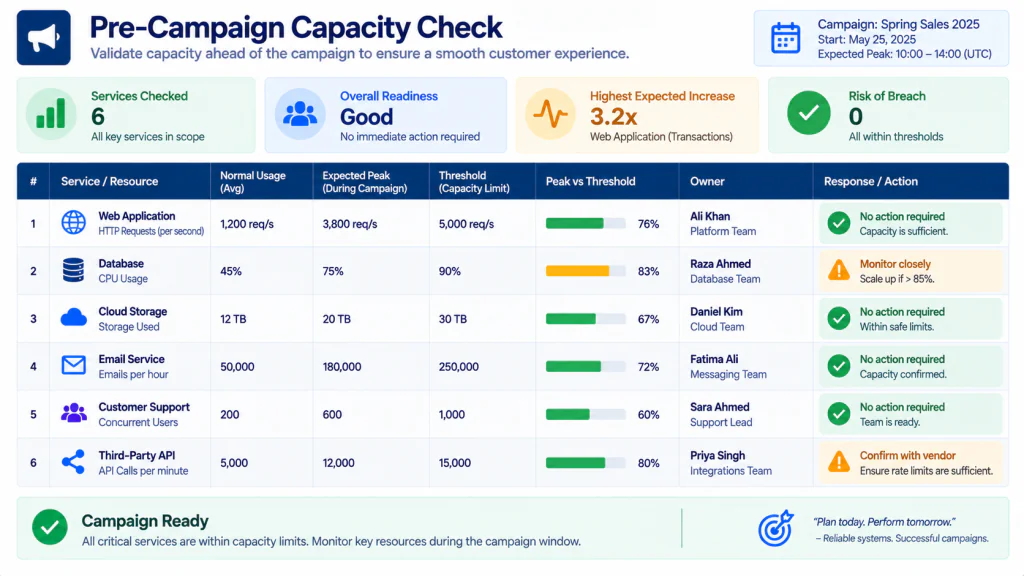
Build a “Before Busy Period” Check
Run the Threshold Map before events likely to increase SaaS consumption.
Examples include:
- major promotions,
- new product launches,
- seasonal campaigns,
- hiring waves,
- migrations,
- customer onboarding pushes,
- large imports,
- new integrations,
- annual reporting periods.
Ask:
What could increase?
How much capacity remains?
Which threshold will be reached first?
Who is watching it?
What is our response?
This takes far less effort than discovering a capacity problem in the middle of the event.
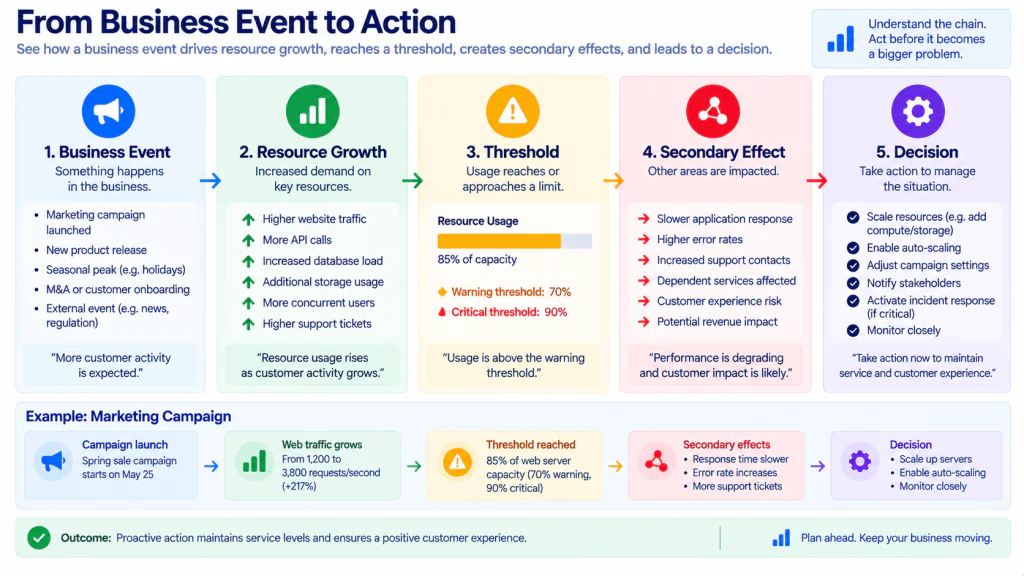
Watch for Threshold Collisions
Sometimes one SaaS limit causes another limit to become important.
Imagine this sequence:
More customers
→ more CRM records
→ more automation runs
→ more API calls
→ more messages
→ higher usage cost
The business may initially notice only the CRM record increase.
But the downstream effects may matter more.
This is a Threshold Collision.
A useful review therefore asks:
“If this resource grows, which other resource is likely to move with it?”
Create simple relationships such as:
Customer growth → records → automation → API activity
or:
File uploads → storage → backup/export activity
or:
New employees → seats → permissions → workflow activity
This does not require a technical architecture diagram.
A simple chain is enough to expose hidden consequences.
Create a Threshold Dependency Chain
For every high-impact resource, document:
Trigger → Resource Increase → Threshold → Business Effect → Response
Example:
New customer campaign
↓
More CRM records
↓
Record threshold reaches 85%
↓
Automation volume also increases
↓
Automation threshold reaches 80%
↓
Review automation capacity before campaign continues
This is more useful than monitoring two unrelated percentages.
Do Not Confuse Alerts With Planning
Many SaaS platforms can send usage notifications when a threshold is reached. Current product documentation from services such as Intercom, Scenario, and Atlassian illustrates this pattern: a warning can be triggered before or near an allowance, while a separate limit may control whether usage can continue.
But an alert does not answer:
- Who owns the issue?
- Why did usage increase?
- Is it expected?
- Is the business willing to pay?
- Should the process change?
- Is the limit actually business-critical?
- What happens if nobody acts?
That is why the Threshold Map should sit above individual SaaS alerts.
The SaaS platform reports the condition.
The business decides what the condition means.
Create a Monthly Threshold Review
For most small businesses, a monthly review is enough for stable resources.
Review:
- current usage,
- previous usage,
- threshold changes,
- unusual increases,
- upcoming busy periods,
- plan changes,
- ownership,
- unresolved decisions.
Ask six questions:
- Which threshold moved the most?
- Which threshold is closest to disruption?
- Which increase is unexplained?
- Which limit will matter during the next busy period?
- Does any owner need to change?
- Does any threshold need to be adjusted?
Do not turn the meeting into a tour of every SaaS dashboard.
Review only the resources that matter.
Use a Threshold Friction Log
Not every capacity problem is a hard limit.
Sometimes the problem is the amount of attention required to stay below the limit.
For example:
- someone repeatedly deletes old files,
- an administrator manually checks usage every few days,
- employees avoid useful features because of capacity concerns,
- a team exports records to spreadsheets to reduce storage,
- a workflow is redesigned repeatedly to conserve executions.
Record these as Threshold Friction.
A useful log might contain:
| Friction | Frequency | Impact | Possible Response |
|---|---|---|---|
| Manual storage cleanup | Monthly | Medium | Review retention |
| Automation reduction | Weekly | High | Redesign workflow |
| Manual usage checking | Weekly | Low | Add alert |
| Seat reassignment | Monthly | Medium | Review plan |
This reveals when a “small” limit is consuming disproportionate management time.
Example: How a Small Studio Could Use the System
Imagine Cedarline Studio, a fictional six-person creative business.
The team uses several SaaS applications for:
- client management,
- project delivery,
- file sharing,
- accounting,
- communication.
The studio has never had a major SaaS capacity problem.
Then the owner notices that one workflow is consuming significantly more automation activity.
Instead of immediately purchasing a larger plan, the team creates a Threshold Card.
Resource
Automation executions
Current usage
68%
Watch point
75%
Decision point
85%
Disruption point
Plan allowance exhausted
Growth driver
New client onboarding workflow
Business impact
High
Owner
Operations lead
The owner discovers that every new client creates several automated actions.
The increase is legitimate.
However, one of those actions is duplicated.
After removing the duplicate process, usage stabilizes.
The business did not need a larger subscription.
The Threshold Map did not prevent the growth.
It helped the team understand the growth before paying for it.
What Freelancers Should Monitor
A solo freelancer may think SaaS thresholds are mainly a concern for larger companies.
They are not.
A freelancer can still encounter limits involving:
- CRM contacts,
- project records,
- file storage,
- automation runs,
- email sends,
- calendar bookings,
- invoice activity,
- form submissions,
- API requests,
- AI or usage credits.
The freelancer version can be extremely small.
Track only:
Application → Resource → Current Level → Warning Point → Owner → Action
Since the owner is usually the freelancer, the important part is the action.
For example:
If storage reaches 80%, review archived client files before purchasing more space.
That single sentence can be enough.
What Small Teams Should Monitor
A small team should assign thresholds according to responsibility.
For example:
Operations
Owns user seats and operational records.
Finance
Owns usage-related spending and plan costs.
Marketing
Owns campaign-related usage spikes.
Technical or systems owner
Owns API, integration, and automation thresholds.
The same person may hold several roles.
That is perfectly acceptable.
The important thing is that every important threshold has a named decision-maker.
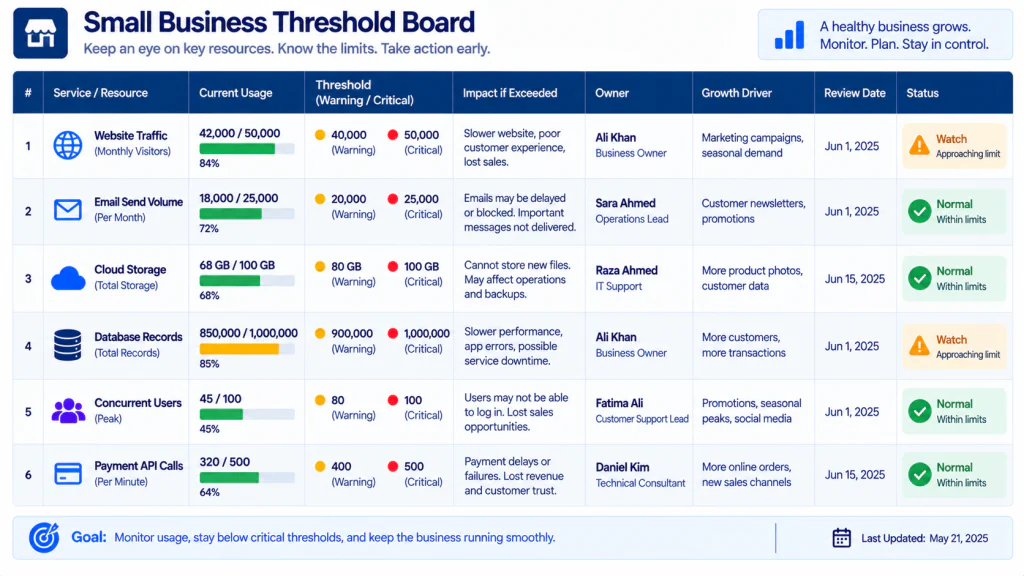
Create a Simple Threshold Board
A small business can maintain a single board with columns such as:
| SaaS Resource | Current | Watch | Decision | Impact | Owner | Next Review |
|---|---|---|---|---|---|---|
| CRM records | 62% | 75% | 85% | Medium | Operations | Monthly |
| Automation | 78% | 75% | 85% | High | Systems | Weekly |
| File storage | 51% | 80% | 90% | Medium | Projects | Monthly |
| API usage | 39% | 70% | 85% | High | Technical | Monthly |
| User seats | 83% | 85% | 95% | Medium | Operations | Weekly |
The board should not become another dashboard nobody opens.
Its purpose is decision visibility.
If a resource is comfortably below its threshold and unlikely to become important soon, it does not need constant attention.
The Five-Minute Threshold Review
For very small businesses, use this short review:
1. What is closest to its limit?
Identify the highest-risk resource.
2. Why is it increasing?
Find the growth driver.
3. Is the growth expected?
Classify it.
4. What happens next?
Identify the likely business effect.
5. Who owns the response?
Confirm the person.
If those five questions have clear answers, the business has much better visibility than a team that merely receives automated warnings.
Common Mistakes to Avoid
1. Tracking every limit
This creates administrative noise.
Track limits that can affect meaningful work.
2. Waiting for 100%
The actual limit is often too late for a comfortable decision.
3. Upgrading automatically
Higher usage does not always mean higher capacity is the correct answer.
4. Treating every spike as waste
Healthy business growth can legitimately increase SaaS consumption.
5. Ignoring secondary effects
One resource can push another resource toward its threshold.
6. Having no owner
A number without accountability is easy to ignore.
7. Using stale screenshots
Threshold information should be checked against the current application.
8. Forgetting busy periods
Normal usage may look safe until a campaign or launch begins.
9. Mixing billing and operational limits
A cost warning and a hard service restriction are different problems.
10. Making the system too complicated
A small company needs useful decisions, not an enterprise governance project.
One-Page SaaS Usage Threshold Map Template
Use this as a starting point.
SaaS Usage Threshold Map
Application:
Resource:
Why it matters:
Current usage:
Included allowance:
Watch threshold:
Decision threshold:
Disruption threshold:
Business impact:
1 / 2 / 3 / 4
Primary owner:
Backup owner:
Growth driver:
Expected peak:
What happens near the limit:
Preferred response:
Continue / Reduce / Clean Up / Redesign / Upgrade / Move / Escalate
Next review date:
Last verified:
Notes:
When to Update the Threshold Map
Do not wait for the monthly review if something important changes.
Update the map when:
- the SaaS plan changes,
- pricing or allowances change,
- the vendor changes how usage is measured,
- a major workflow is added,
- a new integration is connected,
- the company hires several people,
- a large campaign is scheduled,
- an automation changes,
- usage unexpectedly increases,
- or a threshold is reached.
If a threshold review leads to replacing a SaaS tool, map the workflows that depend on it before switching to a new application.
A Better Way to Think About SaaS Capacity
SaaS capacity is not simply:
How much does our plan include?
It is:
How much capacity do we have, how quickly are we consuming it, what causes that consumption, and what happens when we get close to the edge?
That is a much stronger operational model.
A small business does not need to predict every future usage pattern.
It needs to know which limits matter, identify them early, and make decisions before those limits become emergencies.
The most valuable threshold is therefore not necessarily the largest one.
It is the one connected to a business activity that cannot easily stop.
Frequently Asked Questions
What is SaaS usage threshold management?
SaaS usage threshold management is the practice of monitoring important software resources, defining warning and decision points, assigning ownership, and preparing responses before usage limits disrupt business operations.
Is a SaaS usage threshold the same as a usage limit?
No. A threshold is a point at which the business wants to review or act. A usage limit is an actual restriction or allowance imposed by the service. Some platforms also provide alerts separately from hard limits.
Which SaaS limits should a small business monitor?
Start with limits involving users, stored records, storage, automation activity, API or technical consumption, and usage-based charges. Prioritize the resources that could affect important business processes.
Should every SaaS application have a Threshold Map?
Not necessarily. Low-impact applications may only need basic plan information. Create detailed threshold records for applications where capacity changes could interrupt important work or create meaningful cost.
How often should SaaS thresholds be reviewed?
Monthly is a reasonable starting point for stable resources. Review high-impact or fast-changing resources more frequently, especially before major campaigns, launches, migrations, or periods of unusually high activity.
Should a business upgrade when it reaches a warning threshold?
Not automatically. First determine why usage increased, whether the growth is expected, whether process waste exists, and whether the additional capacity provides enough value to justify its cost.
Can freelancers use this system?
Yes. A freelancer can track only a few important limits, such as storage, contacts, automation runs, bookings, messages, or usage credits. The system can fit on one page.
What is the biggest mistake with SaaS usage limits?
Waiting until the limit is reached before deciding what to do. A useful threshold system creates decision time before disruption occurs.
Related SaaS Guides
If you are building a broader SaaS management process, continue with our guides on SaaS configuration baselines, SaaS notification management, and SaaS application workflow mapping.
Final Takeaway
A SaaS plan gives you an allowance.
It does not automatically give you an operating plan.
For a small business, the useful approach is to identify the resources that matter, define early warning points, understand what drives usage, assign owners, and prepare a response before the limit becomes disruptive.
The SaaS Usage Threshold Map turns an abstract subscription limit into a practical business control:
Resource → Usage → Threshold → Explanation → Impact → Owner → Decision
That is enough to replace surprise with preparation.
And when the business grows, the goal is not to stay artificially below every limit.
The goal is to know which limits are worth crossing, which ones should be avoided, and when the decision needs to be made.